
Use this article to create and manage Stream posts in Beacon.
You must have a Facilitator profile to post to the Stream.
Jump To:
Create a Stream Post
Stream posts can be created from anywhere in Beacon to post in one or more LXs.
- Select the Global Actions icon
 in the bottom right corner of any page.
 - Select Create Stream Post
- Under Learning Experiences, confirm or update which Learning Experience(s) the post will be sent to.
- Enter a title for the post.
- Add your content — this can include text, links, or math equations.
- Select whether to allow or disable comments on the post.
- Select Post to publish immediately.
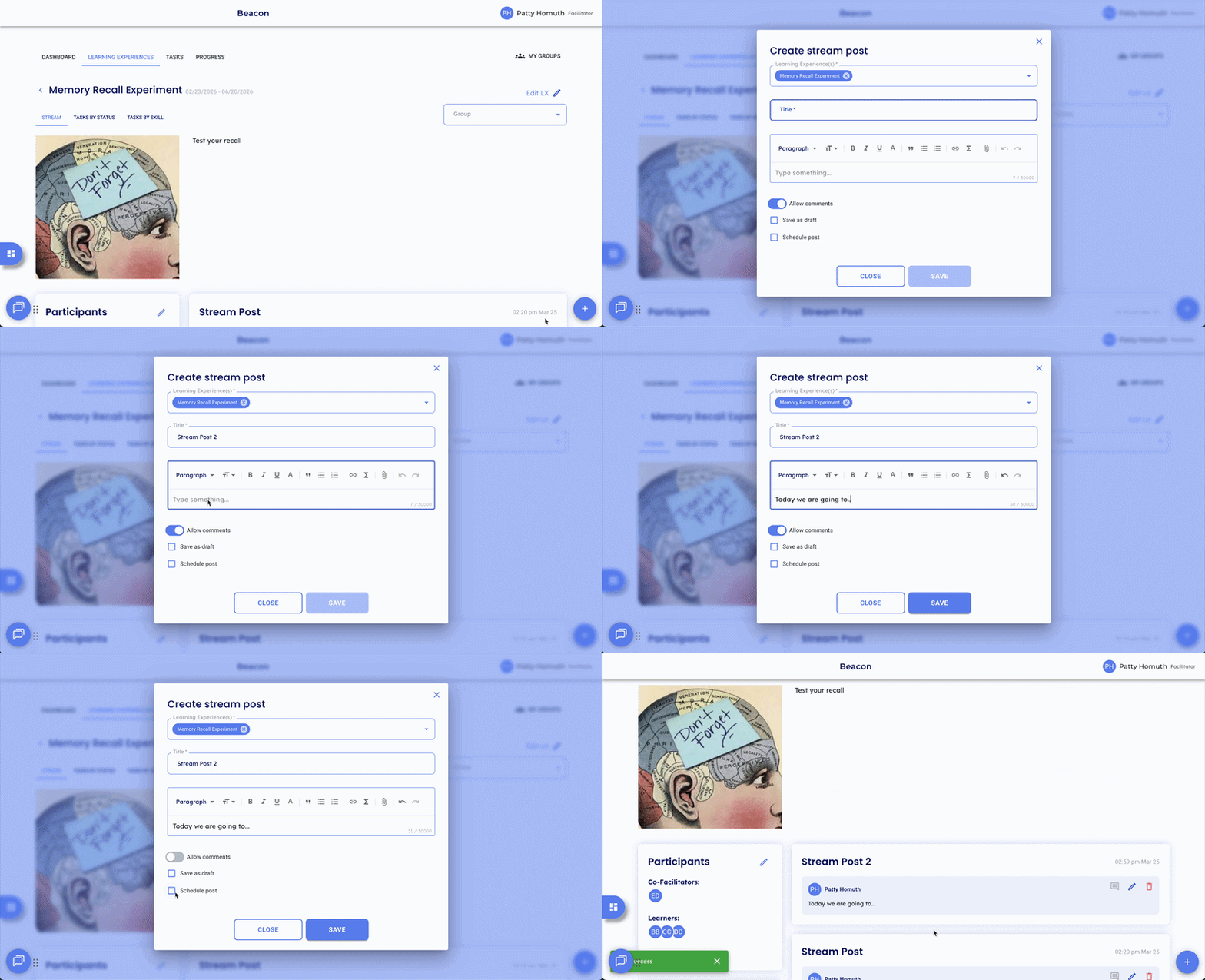
⭐ When creating a post from within an LX, that LX will be pre-populated automatically.
Save a Post as a Draft
- Select the Global Actions icon in the bottom right corner of any page.
- Select Create Stream Post
- Under Learning Experiences, confirm or update which Learning Experience(s) the post will be sent to.
- Enter a title for the post.
- Add your content — this can include text, links, or math equations.
- Select whether to allow or disable comments on the post.
- Select Save as Draft.
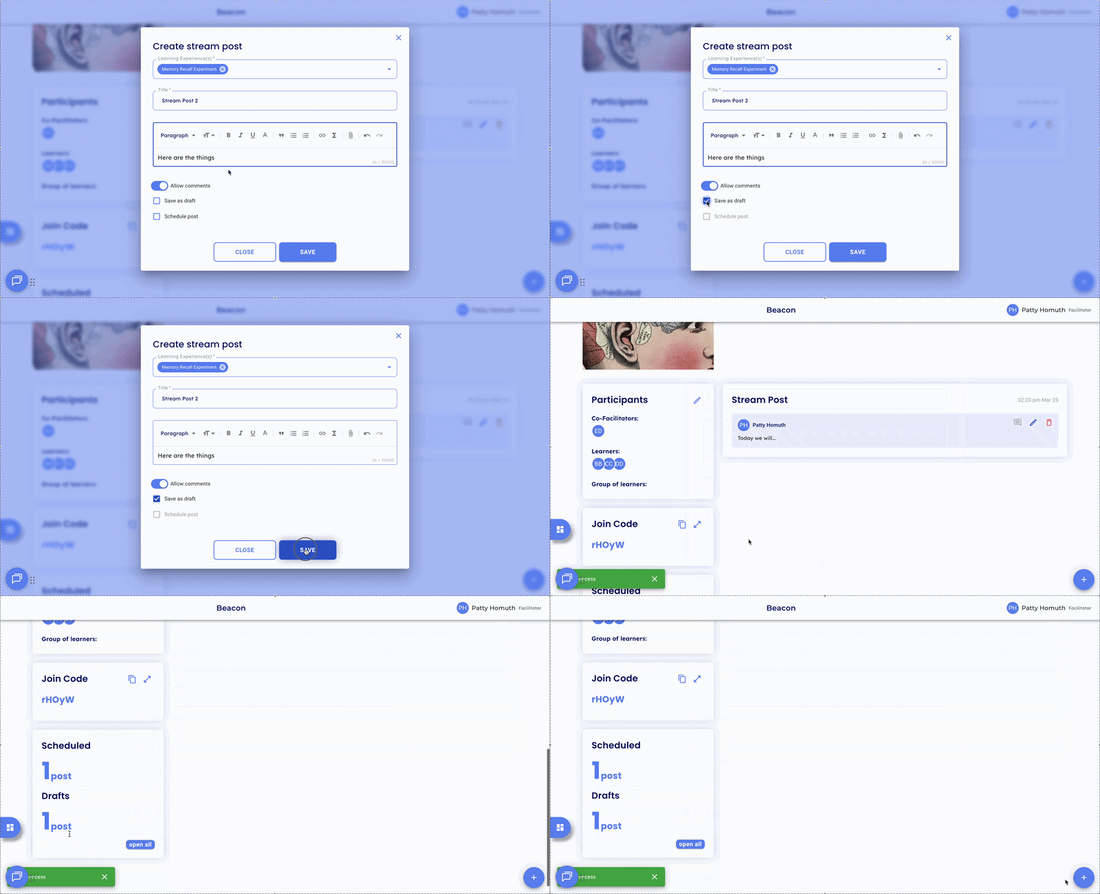
Note: Drafts are not visible to Learners until published.
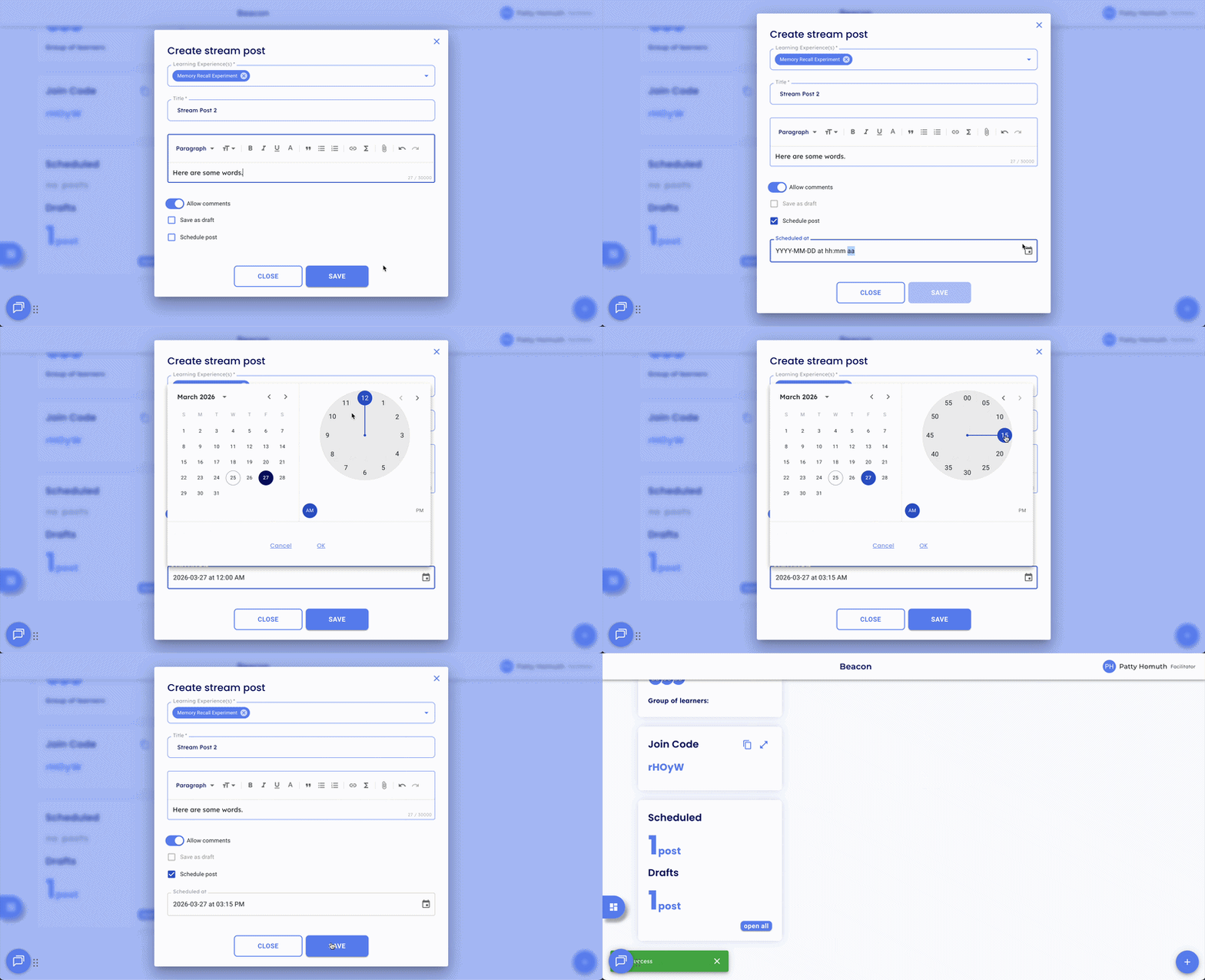
Schedule a Post
- Select the Global Actions icon in the bottom right corner of any page.
- Select Create Stream Post
- Under Learning Experiences, confirm or update which Learning Experience(s) the post will be sent to.
- Enter a title for the post.
- Add your content — this can include text, links, or math equations.
- Select whether to allow or disable comments on the post.
- Select Schedule and choose a date and time for the post to publish.
- Confirm the scheduled time and select Schedule Post.
Manage Posts
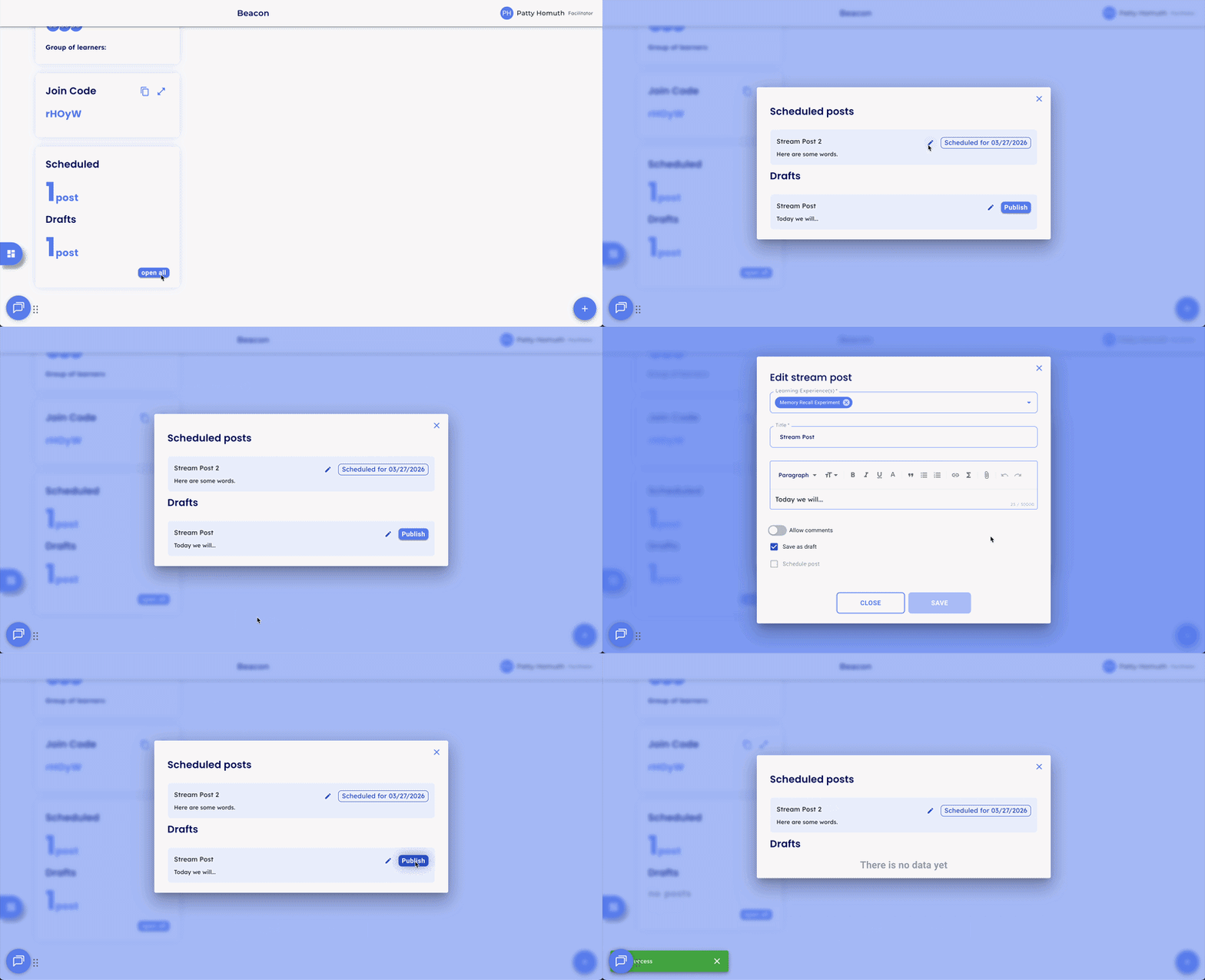
The lower left of the Stream tab has a card that displays the current count of scheduled and draft posts. Select Open All to view and manage them.
- Scheduled posts: Select a post to edit the content, Learning Experiences, or scheduled date and time.
- Draft posts: Select a post to edit, or select Publish to make it live immediately.
Any published post can also be edited or deleted at any time.
🤔 FAQs
Who can see Stream posts? Stream posts are visible to Learners in the associated Learning Experience. Facilitators can see and manage all posts they have created.
Can I post to multiple Learning Experiences at once? Yes. When creating a post, add any additional Learning Experiences under the Learning Experiences field before publishing.