Use this article to get familiar with navigation and key features available to you in Beacon.
Jump To:
Dashboard
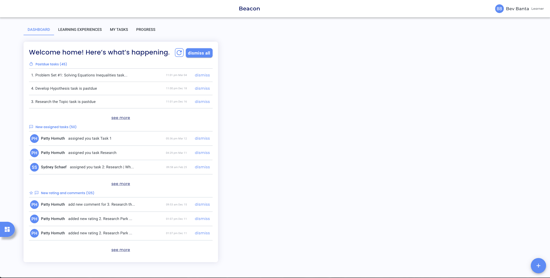
The Dashboard is the default home screen in Beacon. It surfaces tasks assigned to the learner you are supporting, organized by status: past-due tasks, newly assigned tasks, and tasks with new ratings or comments. Any task row can be opened directly from the Dashboard, and tasks can be dismissed individually or all at once.
Learning Experiences
The Learning Experiences tab displays all current LXs in card format. Each card shows the name of the LX and the facilitator.
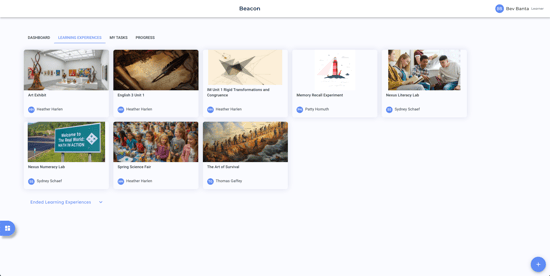
To view LXs the learner has previously been enrolled in, select the Previous Learning Experiences dropdown.
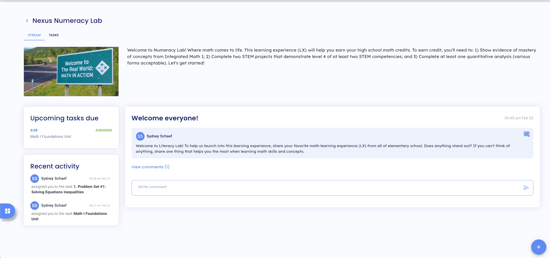
Selecting an LX opens it. Inside an LX, there are two navigation tabs: Stream and Tasks.
Stream
The Stream displays the LX image and description, upcoming tasks, recent activity, and any posts the facilitator has shared.
Tasks
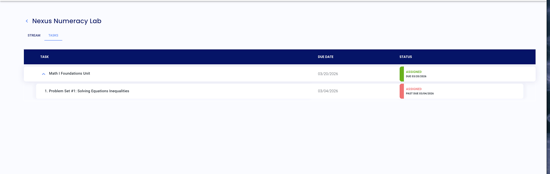
The Tasks tab shows the full task list for the LX. From here you can view due dates and task status. Selecting a task opens it, where you can view task information including the rating scale, ratings, and instructions, and submit evidence.
Note: Viewers cannot add comments to tasks.
My Tasks
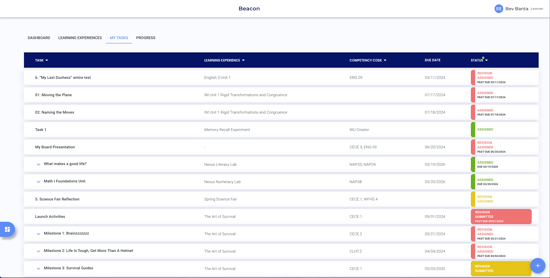
My Tasks shows every task assigned to the learner you are supporting across all of their Learning Experiences, regardless of status. Use the filters at the top to narrow your view by:
- Evidence submitted — tasks where the learner has submitted evidence
- Learning Experience — tasks filtered by a specific LX
- Competency code — tasks associated with a specific competency
- Status — tasks filtered by their current status (e.g., Assigned, Submitted, Completed)
Filters can be used individually or in combination. Selecting any task opens it for more detail.
Progress
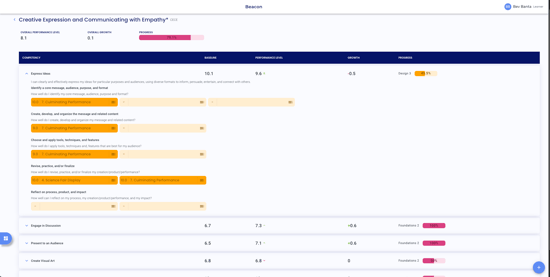
The Progress tab displays all of the competency areas the learner you are supporting is enrolled in. For each competency area, you can view the learner's current performance, growth, and progress, which portfolio level the learner is working in, and how much of the learner's evidence has been rated out of the total evidence requirements.
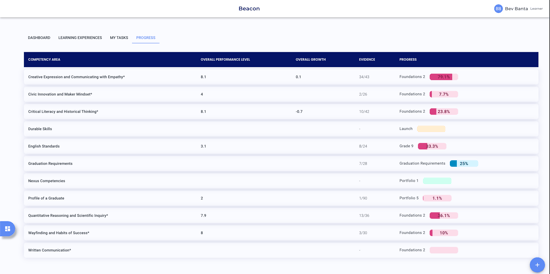
Selecting a competency area opens a detailed view of the learner's progress at the competency and skill level. From here you can view ratings by task, and select into any task to see current and historical ratings.