Use this article to add evidence, comment, and submit an assigned task for rating in Beacon.
You must be assigned to a task in an active Learning Experience to complete these steps.
Jump To:
- Add Evidence
- Add a Comment
- View the Rating Scale
- Self-Assess
- Submit Your Task
- Unsubmit a Task
- Submit a Revision
Add Evidence
You can access your tasks from your Dashboard, from within a Learning Experience, or from My Tasks.
- Select a task to open it.
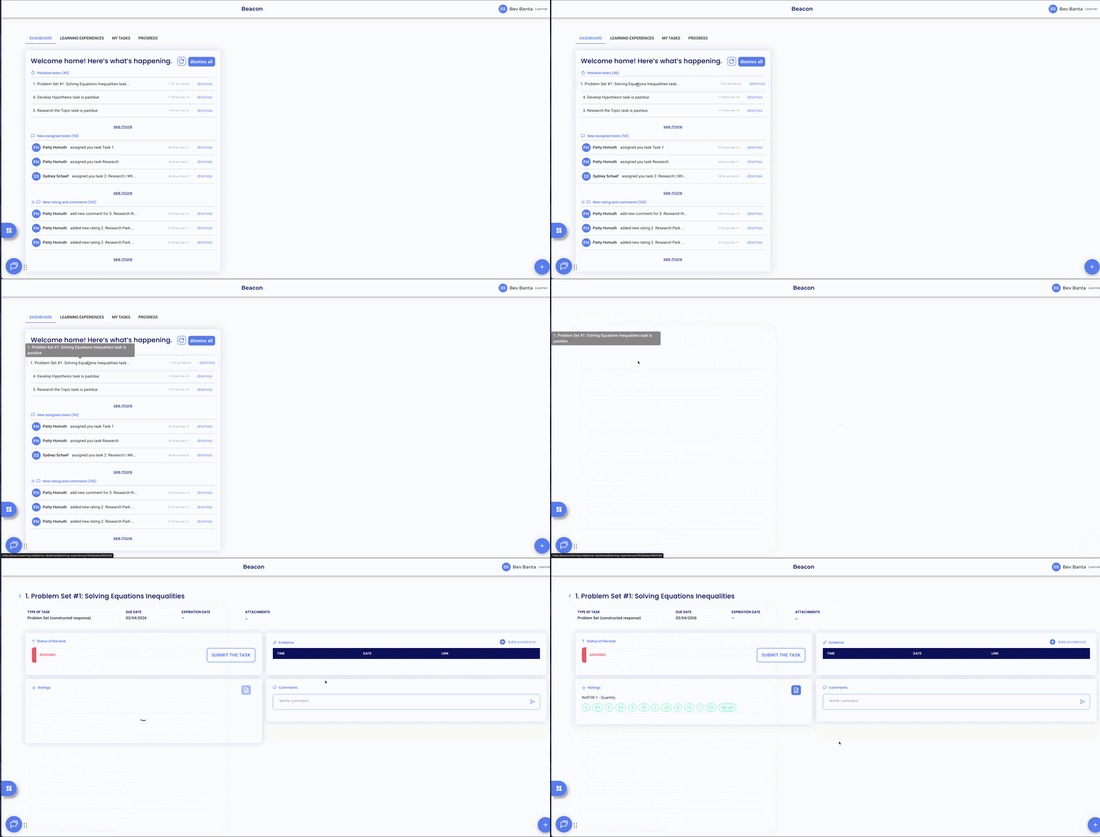
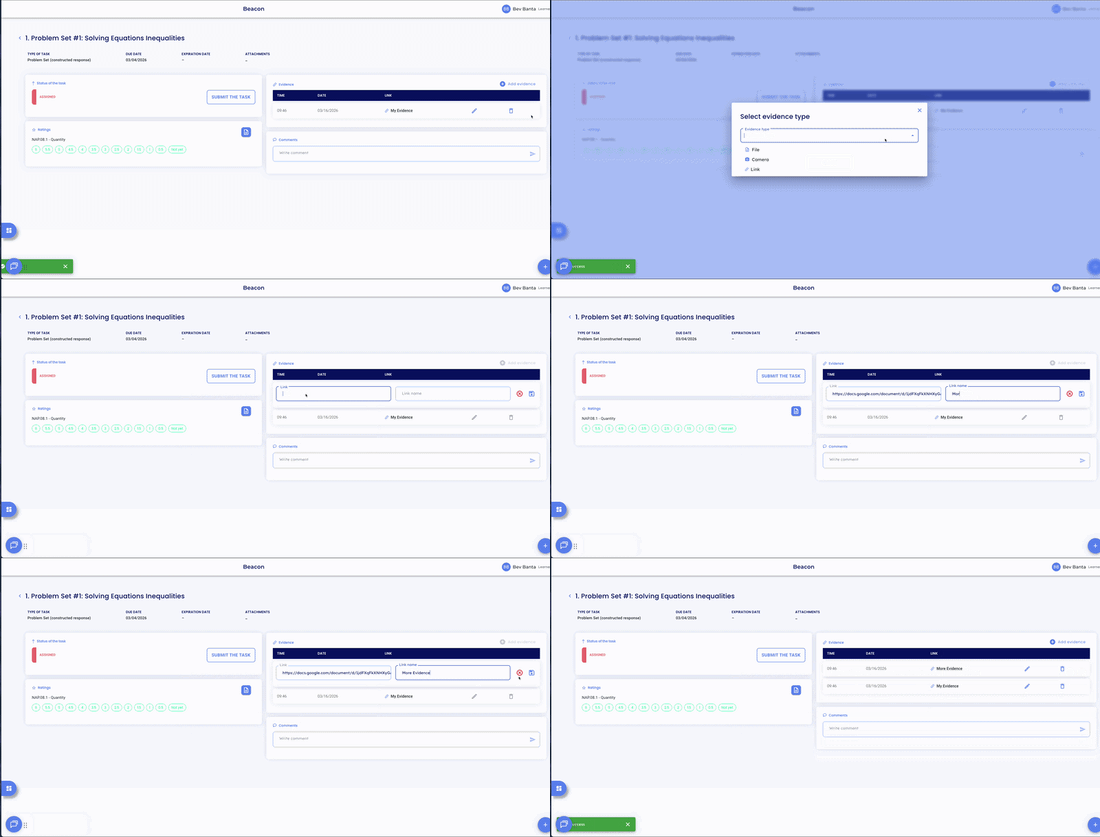
- Select Add Evidence in the Evidence panel.
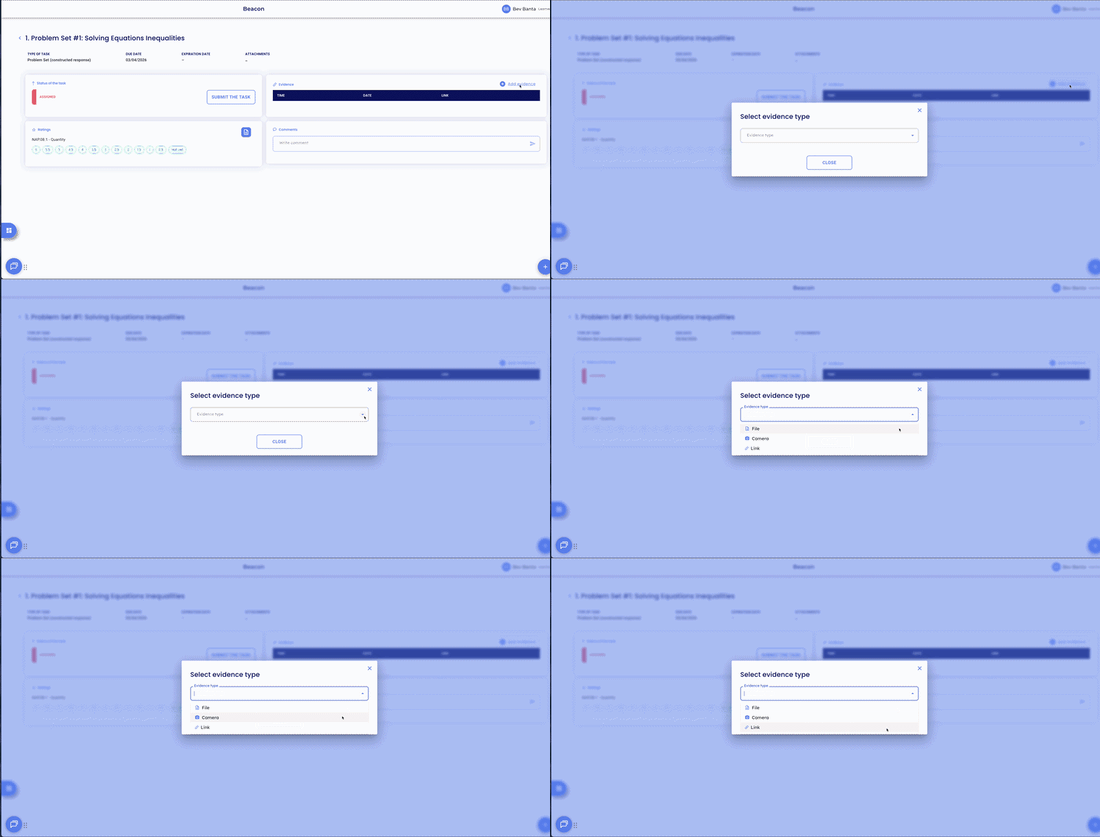
- Choose your evidence type from the Select evidence type dropdown menu:
- File — upload a file from your device capture an image directly from your device
- Camera — capture an image directly from your device
- Link — attach a URL
- Narrative Text — add a Title and type in your evidence
- If adding a link, enter the URL, then enter a name for the link, then select Save.
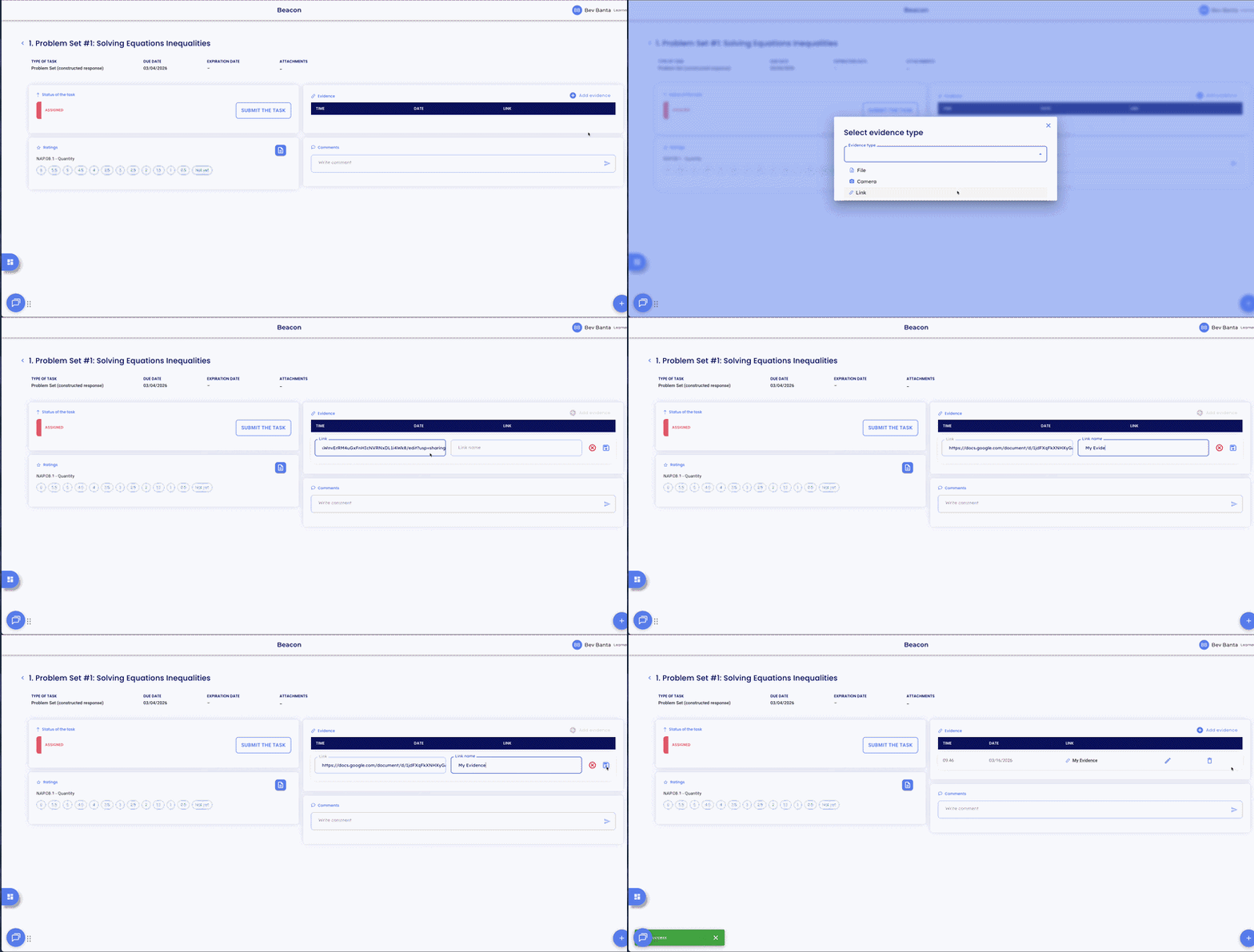
⭐ Tip: You can add multiple pieces of evidence to a task — just repeat these steps for each one.
Add a Comment
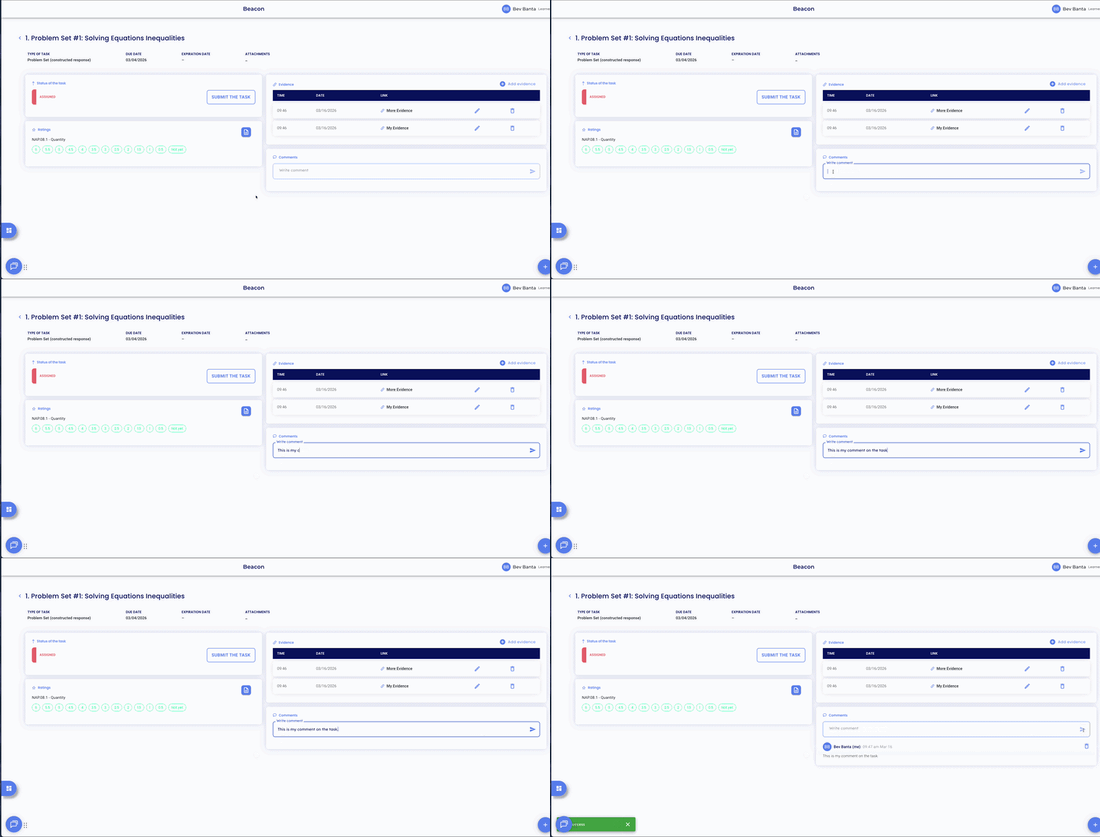
- Select the Comments field in the task to activate it.
- Type your comment.
- Select the Send icon
 to post.
Note: Comments are visible to your facilitator and anyone else with access to the task.
View the Rating Scale
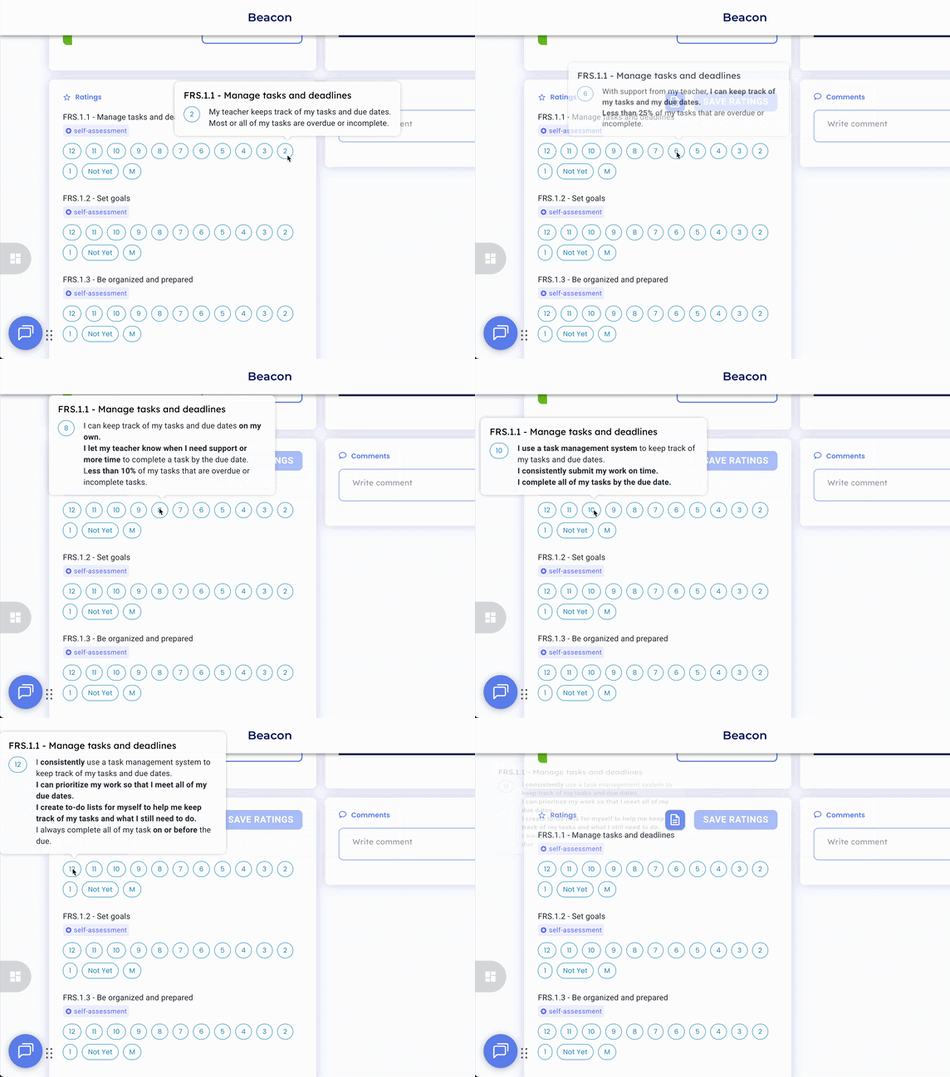
The Ratings section of a task shows each skill attached to the task and its rating scale.
-
Hover over a rating to view the progression indicators for that level, if available.
Note: Not all tasks have skills attached. If no Ratings section appears, the task is marked complete without a rating.
Self-Assess
Note: Self-assessment is not available on all tasks — your facilitator can let you know if it is expected for a task.
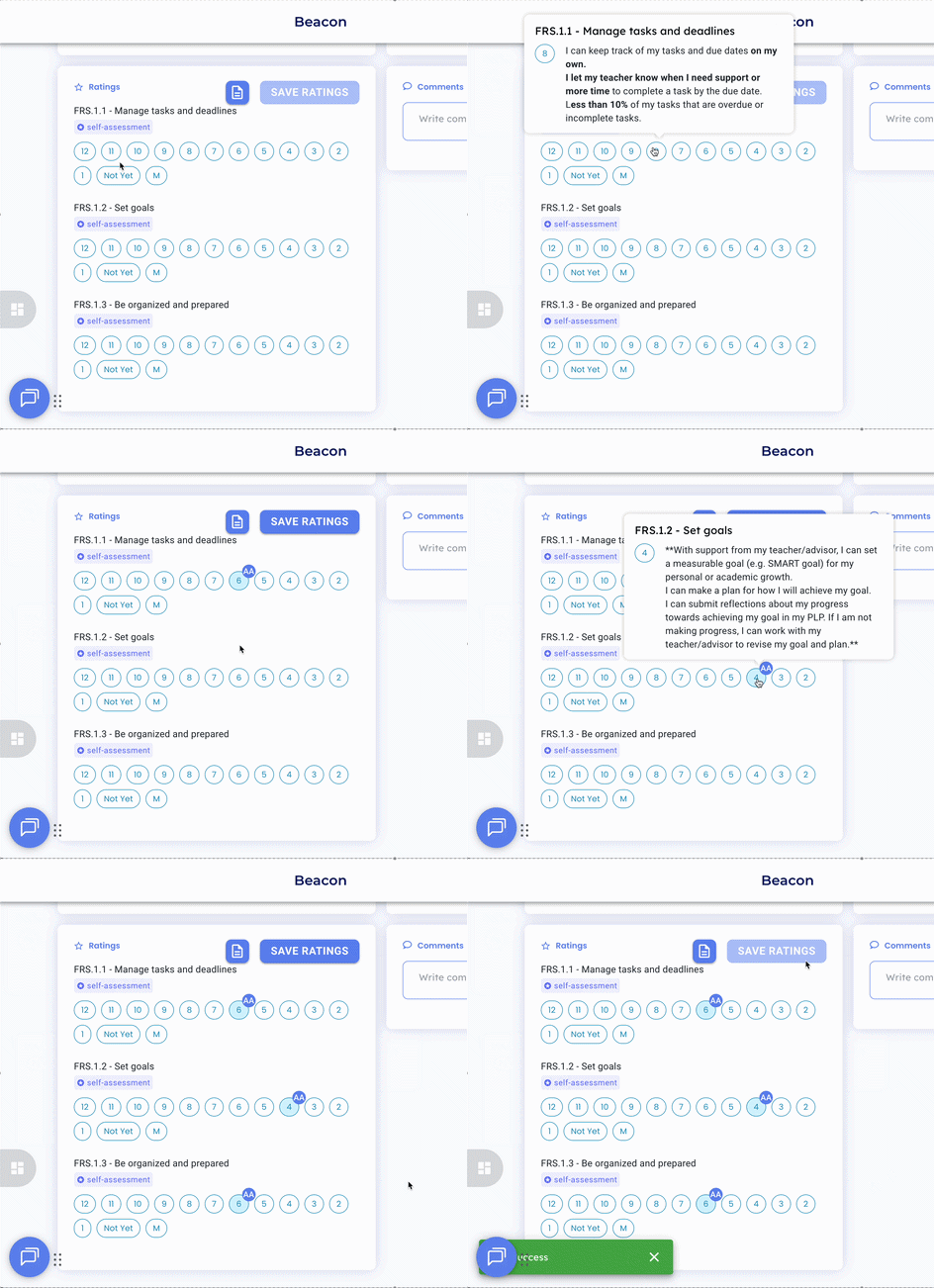
- Check to see if there is a starred self-assessment option listed under the skill in the Ratings section.
- If that exists, and your facilitator has requested it, select your rating directly on the rating scale.
Submit Your Task
- Select Submit Task in the Status section of the task.
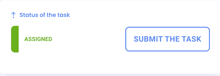
Note: Once submitted, you cannot add or edit evidence unless your facilitator sends the task back for revision.
Unsubmit a Task
- Select Un-submit the Task in the Status section of the task.
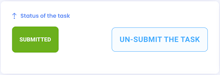
⭐ Tip: Unsubmitting allows you to add or update evidence before resubmitting.
Note: You cannot unsubmit a task that has been completed.
Submit a Revision
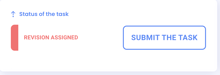
When your facilitator sends a task back for revision, your task status will update to Revision Assigned.
- Review any comments from your facilitator in the Comments panel.
- Add or update your evidence following the steps in Add Evidence.
- Select Submit the Task when you are ready to resubmit.