Use this article to rate learner tasks and update task status using Tasks by Status or Tasks by Skill in Beacon.
You'll need an active Learning Experience with at least one enrolled learner and at least one assigned task with a skill to complete these steps.
Jump To:
Rate a Task via Tasks by Status
- Select Learning Experiences from your Facilitator profile.
- Select the LX you want to work in.
- Select Tasks by Status.
- Select a learner's task card to open it.
- Choose a rating for each skill using one of the following options:
- Rating scale numbers — hover over a number to see the progression language for that level (if applicable)
- Ratings form — select the form icon
 to open a detailed view of the full rating scale with progression language for all skills
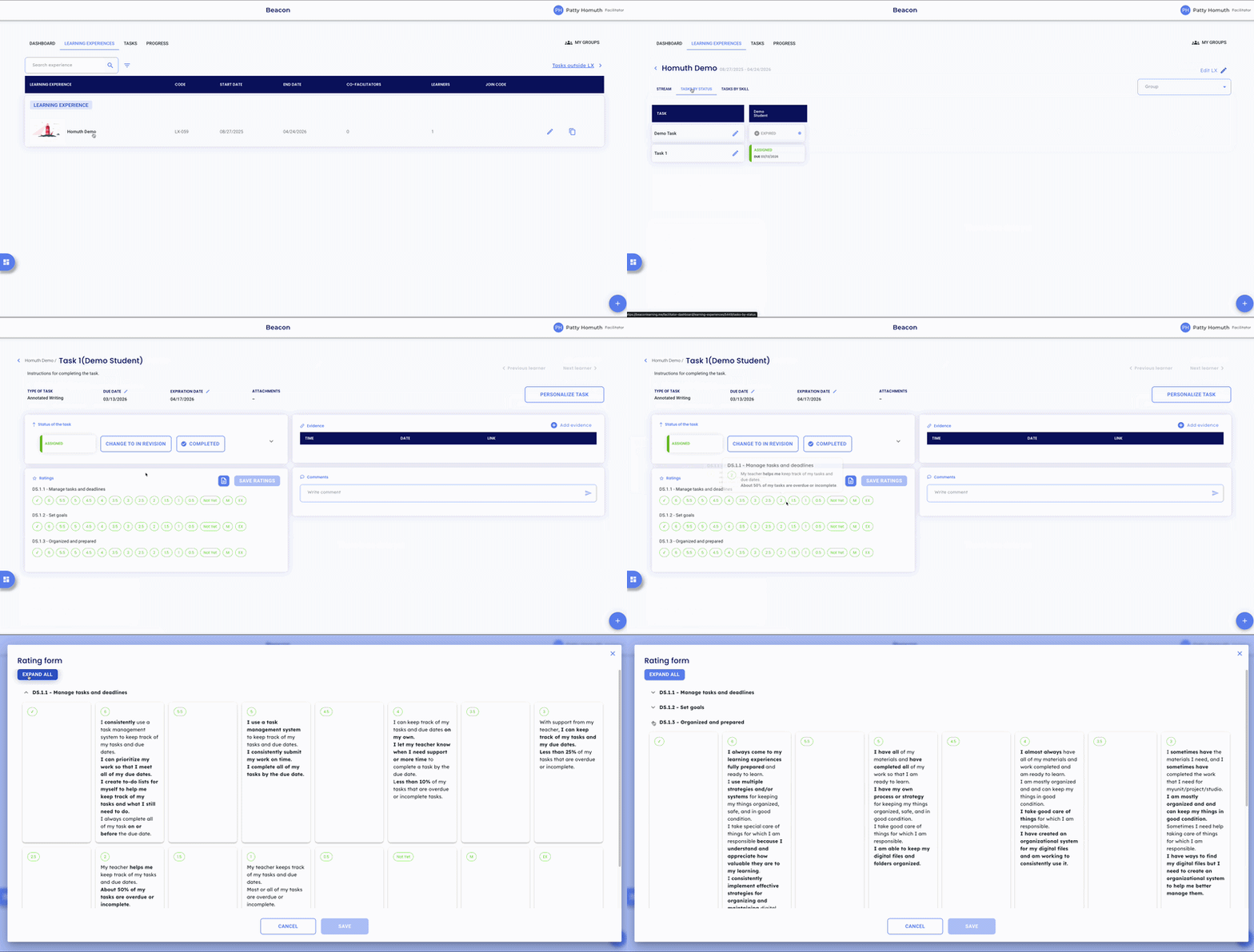
- Select Save to apply the rating.
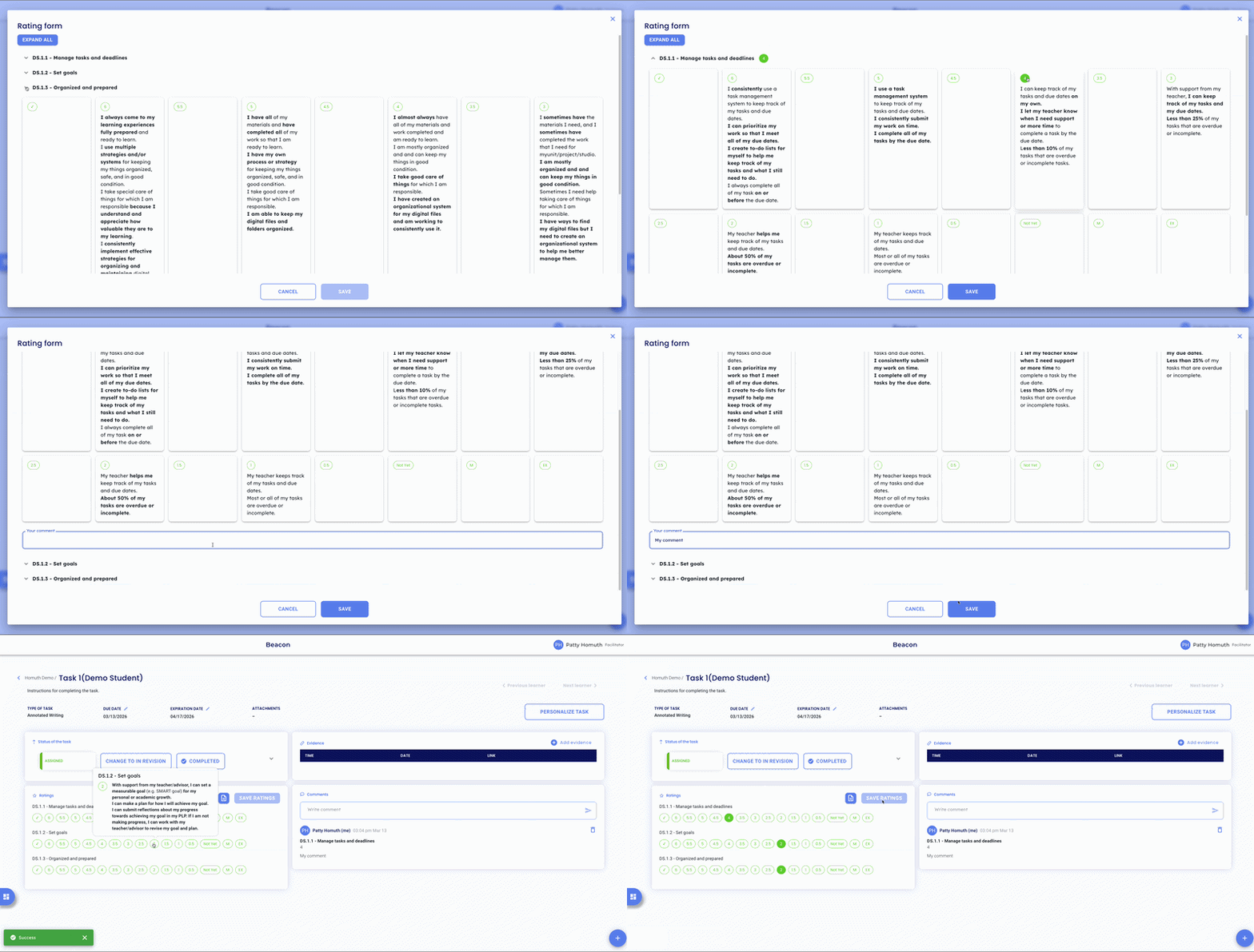
- Add a comment using one of the following options:
- Ratings form — enter your comment directly in the form before saving
- Comment card — enter your comment in the Comment card, then select the Send icon

- Update the task status by selecting Change to In Revision or Completed as needed.
Note: Setting a task to Completed prevents the learner from submitting additional evidence.
- Select Next Learner in the top right to move to the next learner in the LX without returning to Tasks by Status.
⭐ Tip: Use Ctrl + Click (Command + Click on Mac) to open a learner's task in a new tab.
Rate a Task via Tasks by Skill
- Select Learning Experiences from your Facilitator profile.
- Select the LX you want to work in.
- Select Tasks by Skill.
- Locate the task you want to rate and select the arrow to expand it.
- Select a rating from the dropdown for each learner.
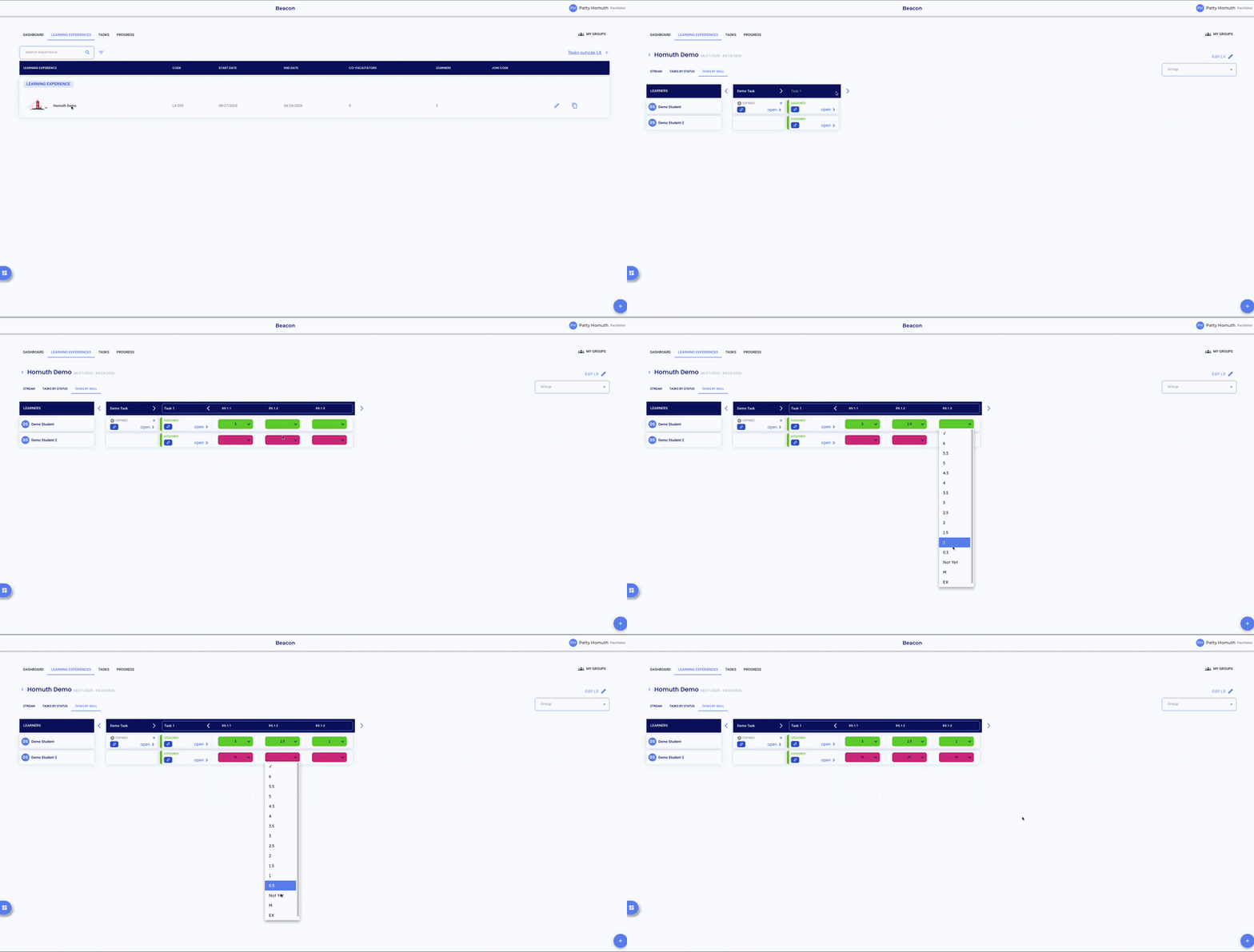
Note: To update a task's status or mark a task as Completed, select Open the individual learner task card.
⭐ Tip: Use the group filter to narrow the learner list to a specific section before rating.
FAQs
Can I rate multiple learners at once? Tasks by Skill allows you to rate all learners on a skill without opening each task card individually. To update task status or mark a task as Completed, you'll need to select Open on each learner's task card.
What does the progression language in the Ratings form show? The Ratings form displays the descriptive language tied to each level of the rating scale for a given skill, if your admin has configured it. Hovering over a rating scale number on the task card shows the same information.
Can I change a rating after saving it? Yes: open the learner's task card from Tasks by Status, select a new rating, and save. To remove a rating entirely, select the rating that was already given to remove, then save.
What happens if I set a task to Completed by mistake? You can update the task status at any time by opening the learner's task card from Tasks by Status and selecting Change to In Revision or Change to Assigned.