Use this article to personalize a task for an individual Learner in Beacon.
You must have a Facilitator profile and access to the Learning Experience containing the task.
Jump To:
Personalize a Task
- Navigate to the Learning Experience and select the Tasks by Status tab.
- Locate and Select the task card for the Learner you want to personalize.
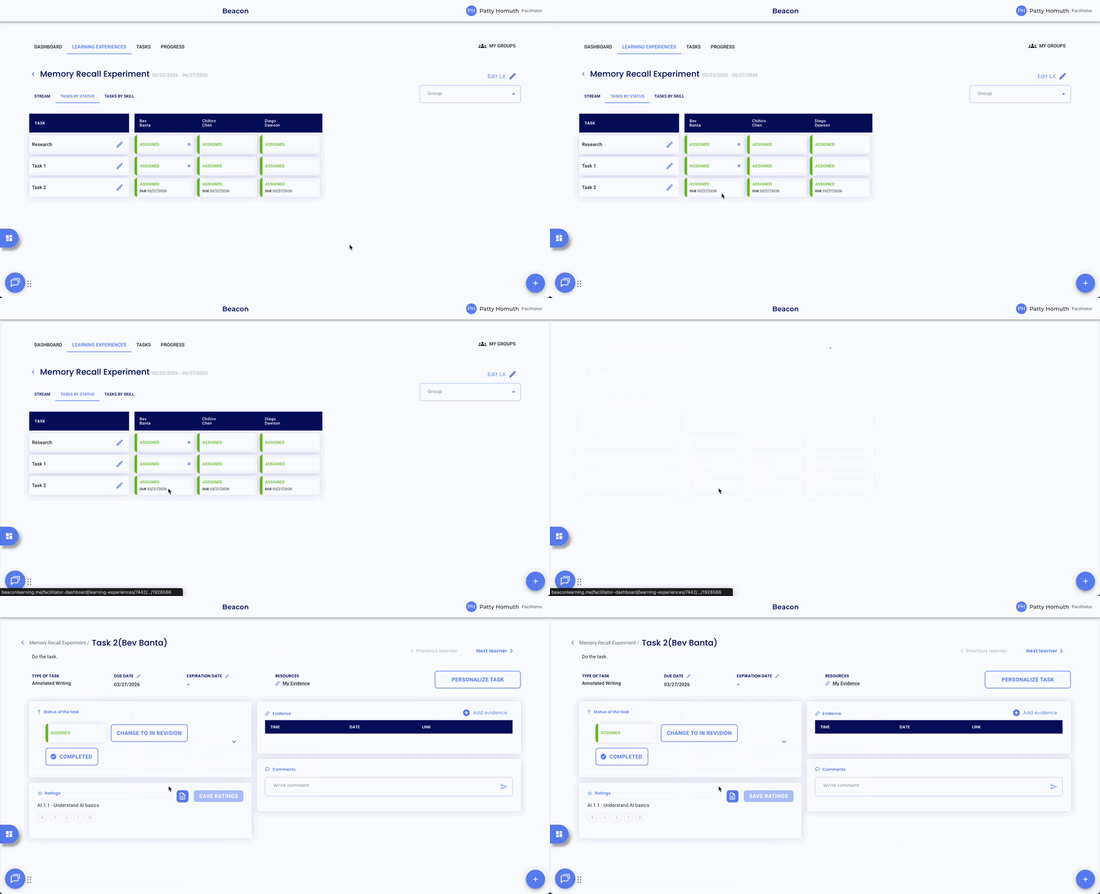
- Select Personalize Task in the top right of the task view.
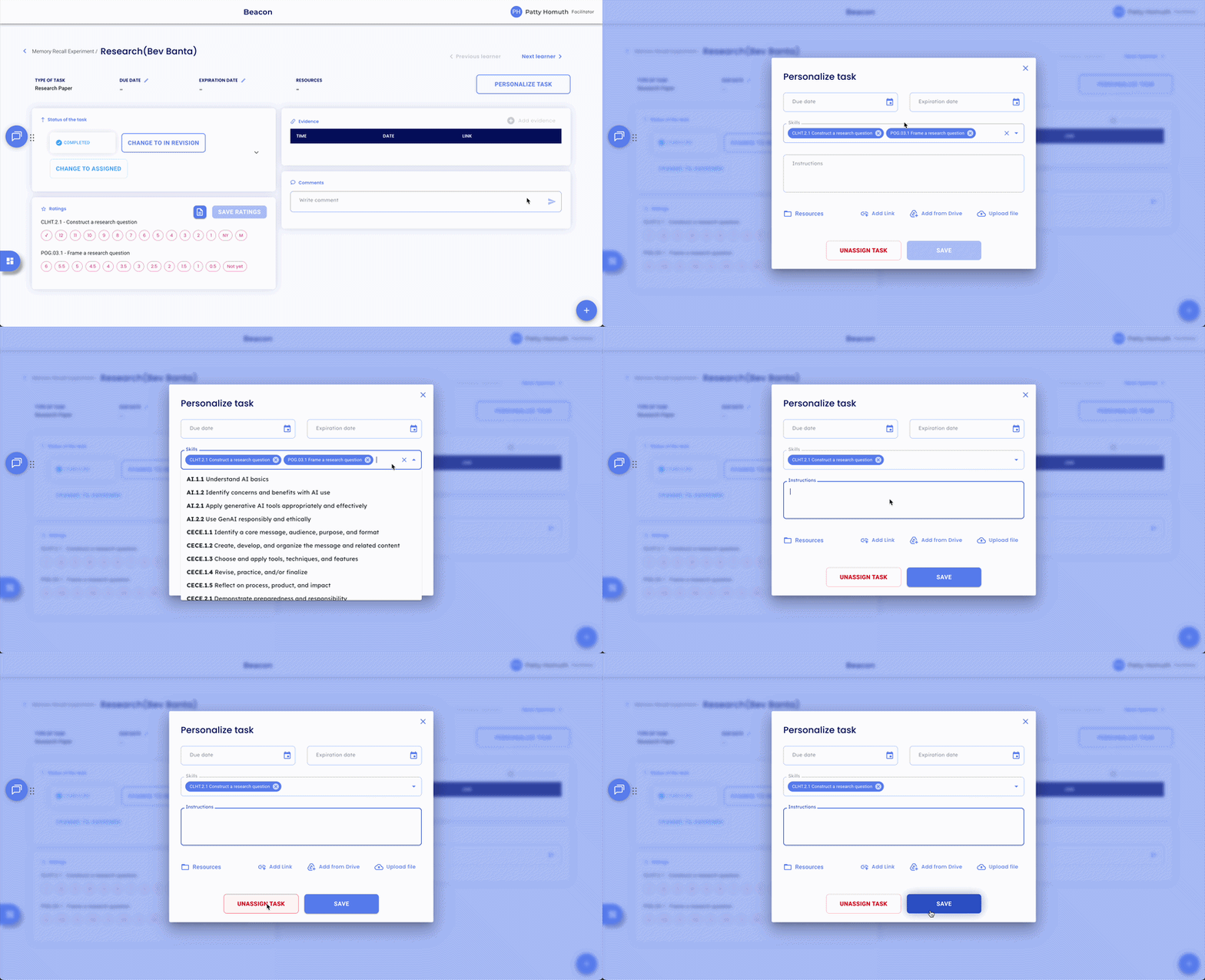
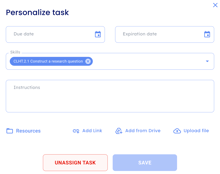
- Edit any of the following fields as needed:
- Due Date
- Expiration Date
- Skills
- Instructions
- Links
- Select Save to apply your changes.
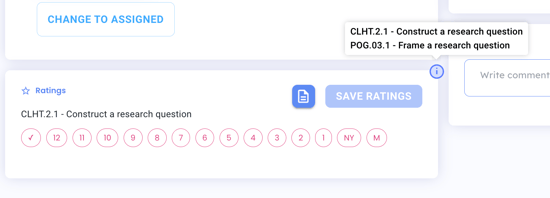
⭐ Once saved, an ⓘ icon will appear on the task. Hover over it to view the original task details alongside the personalized version.
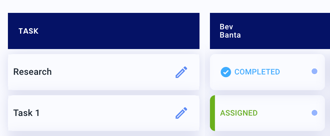
Note: When viewing all tasks in the Learning Experience, a blue dot in the top right corner of a task card indicates that task has been personalized for that Learner.
Unassign a Task for a Learner
- Navigate to the Learning Experience and select the Tasks by Status tab.
- Locate the task card for the Learner you want to unassign.
- Select Personalize Task in the top right of the task view.
- Select Unassign Task to remove the task for this Learner only.
Note: Unassigning a task removes it for the individual Learner only, all other assigned Learners are not affected.
🤔 FAQs
Can I re-assign a task after unassigning it for a Learner? Yes. Navigate to the task and reassign the Learner. Any previous personalization will need to be reapplied.
Will my changes affect other Learners assigned to the task? No. Personalizations apply only to the individual Learner — the original task remains unchanged for all others.