
Use this article to edit, deactivate, and activate users in Beacon.
You must be logged in as an Admin to complete these steps. Your default view when logged in is the Users page.
Jump to:
Edit a User
- Locate the user by filtering, scrolling, or searching.
- Select the pencil edit icon
 next to the user you want to edit.
 - Update any of the following fields: name, title, external ID, email, group assignments, or user permissions.
- Select Save to apply your changes.
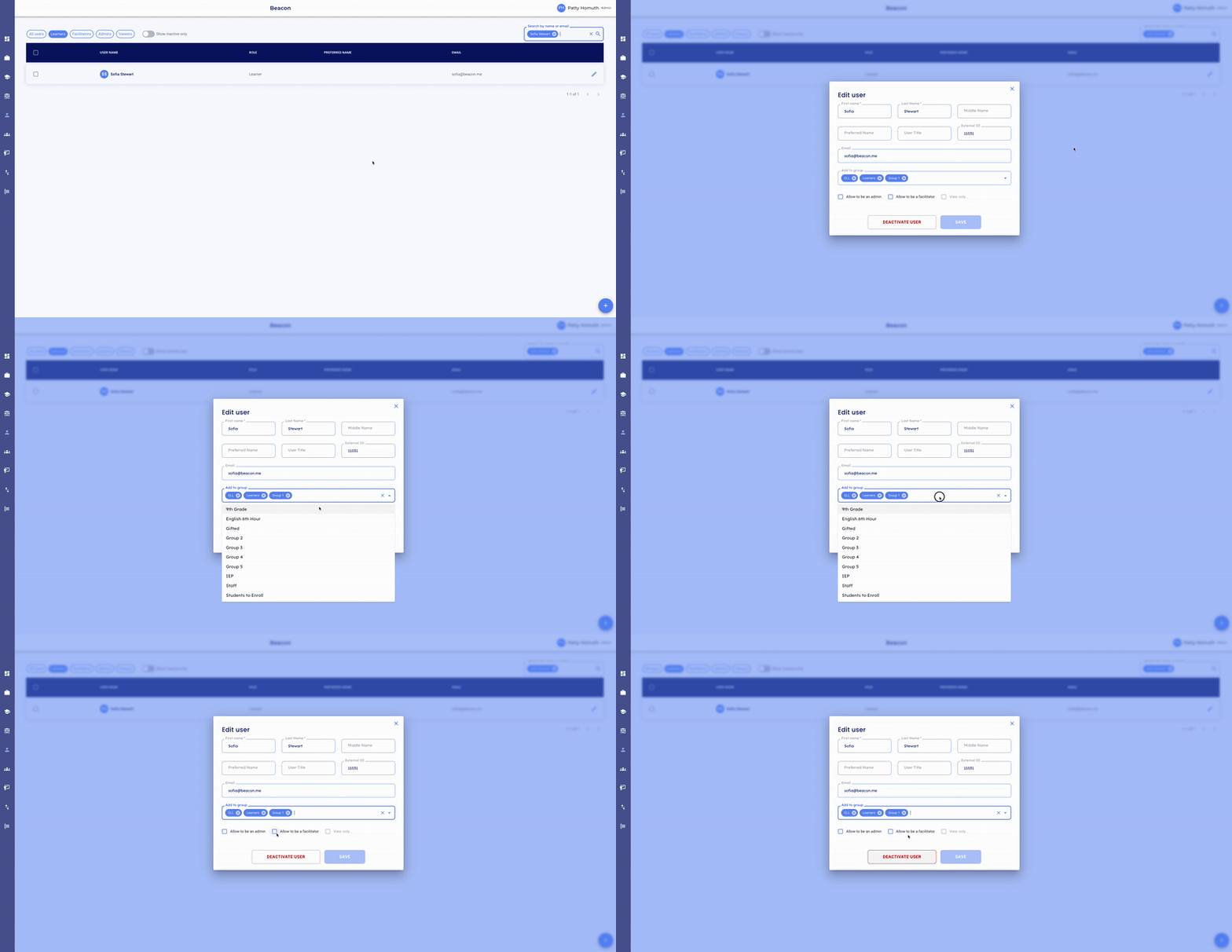
Note: You can also deactivate a user from the edit panel. Deactivating archives the user and their information.
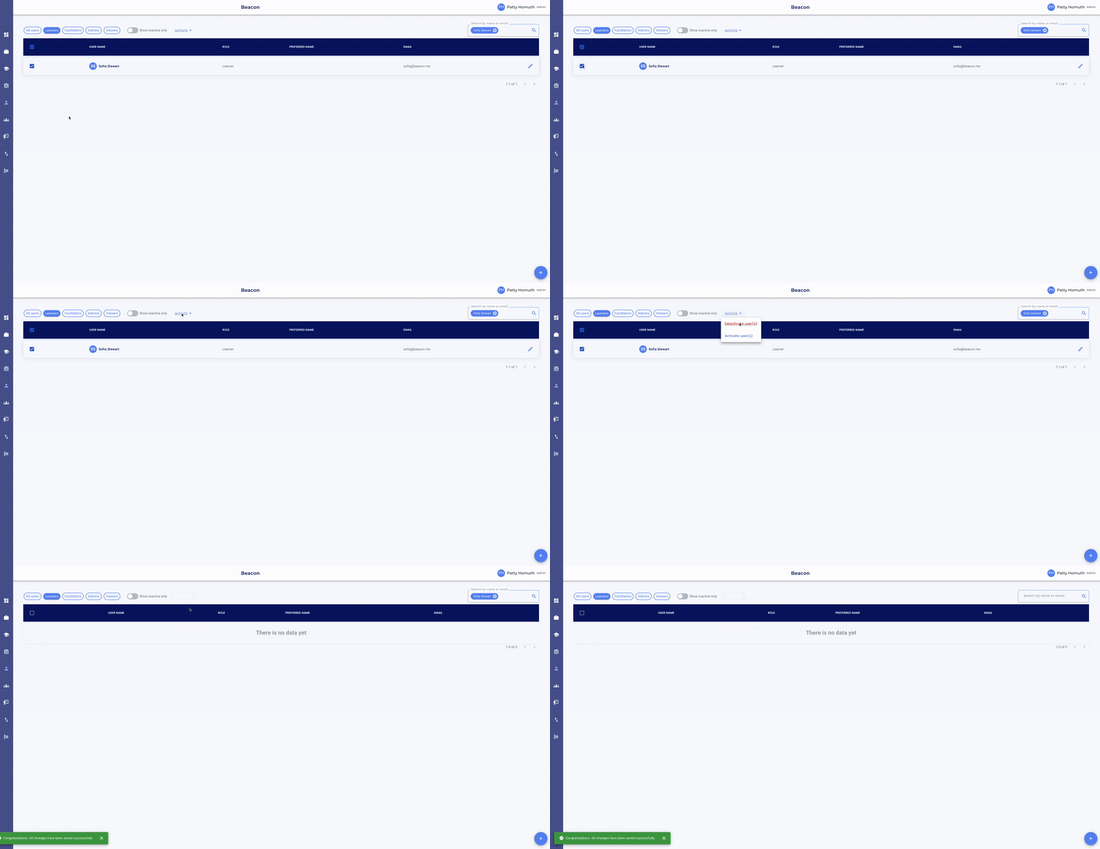
Deactivate a User
- Locate the user by filtering, scrolling, or searching.
- Select the checkbox next to the user you want to deactivate.

- Select actions, then select Deactivate User(s).
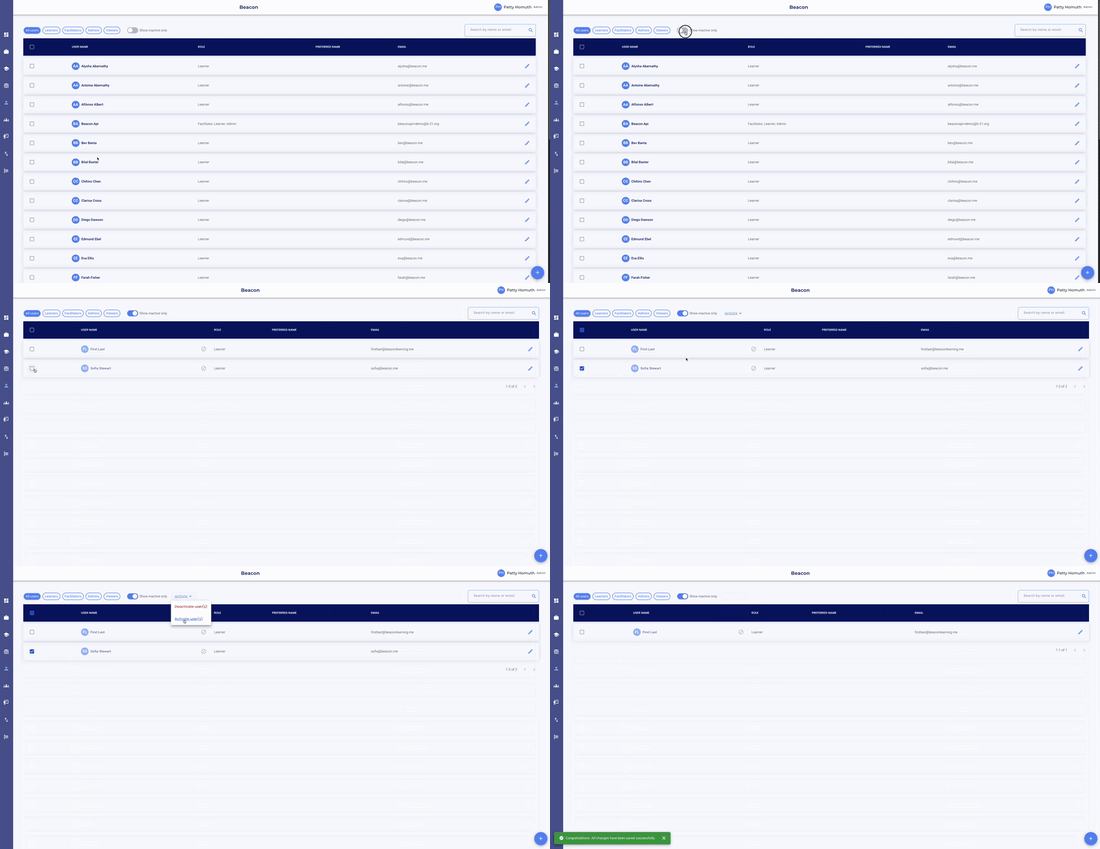
Activate a User
- Toggle Show Inactive Only to view deactivated users.

- Select the checkbox next to the user you want to activate.
- Select actions, then select Activate User(s).
🤔 FAQs
Can I change a user's permissions? Yes. Select the pencil icon next to any user to open their edit panel, where you can update their permission level at any time.
What happens when I deactivate a user? Deactivating a user archives them and their information. They will no longer appear in your active user list but can be reactivated at any time.
A user is no longer at our school. What should I do? Deactivate the user. This removes them from active views while preserving their data in the system.
Can I deactivate or activate multiple users at once? Yes. As long as the users are visible on the same page, you can select multiple users and deactivate or activate them all at once.