
Use this article to create a new user or upload multiple users at once in Beacon.
You must be in your Admin profile to complete these steps. Setting up Viewer accounts follows a different process.
Jump to:
Create a User
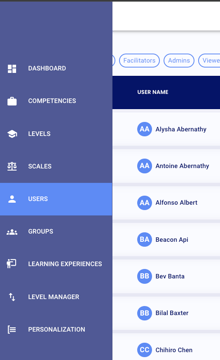
- Select Users from the left-side navigation menu. This is your default view when you enter the Admin profile.
- Select
 and choose Create user to open the new user panel.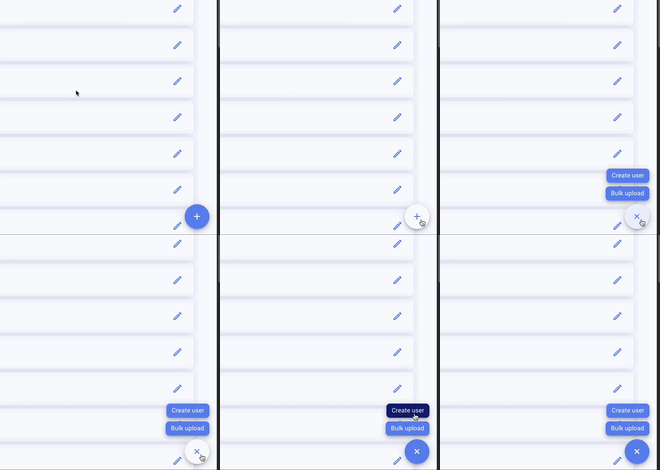
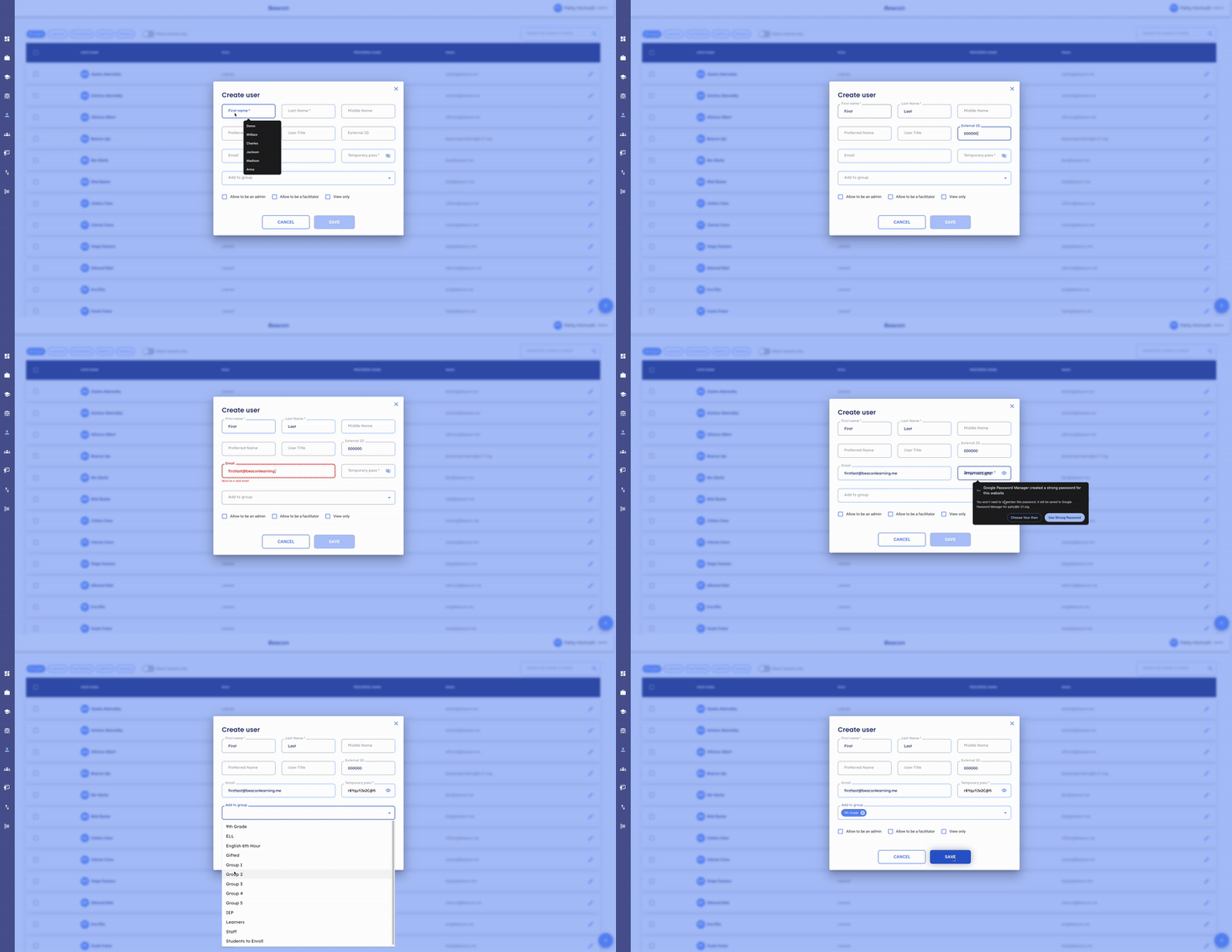
- Enter the user's first name, last name, and email address.
- Create a temporary password for the user.
- If the user is a Learner, enter their External ID — this must match the ID used in your SIS, not their State ID.
- Assign the user to any existing groups as needed.
- Set the user's permissions. If no permissions are selected, the user will default to Learner access.
- Select Save to create the user.
⭐ Tip: After creating a Learner, they will need to be enrolled in their portfolio levels before they can begin working in Beacon.
Bulk Upload Users
Use bulk upload when adding multiple users at once, such as at the start of a school year.
- Complete the user import template here or provided by the Beacon Support Team. Include each user's first name, last name, email, and External ID - these columns are marked with green. Blue columns are optional.
- Select Users from the left-side navigation menu.
- Select
 and choose Bulk upload.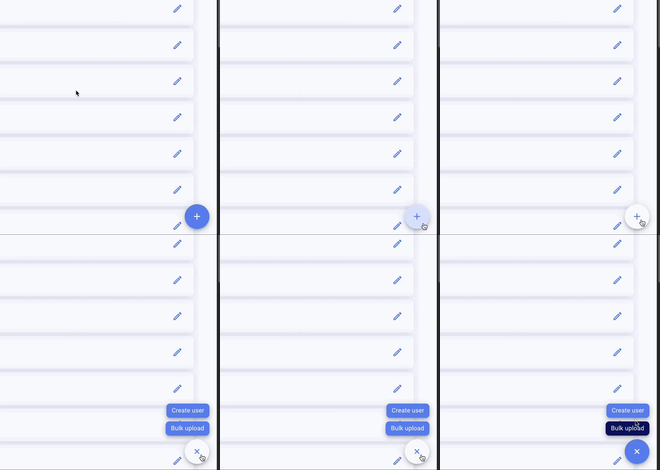
- Upload the completed template.

- Review any errors flagged after uploading and correct before re-uploading if needed.
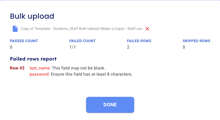
Note: After a bulk upload, Learners will still need to be assigned to groups and enrolled in their portfolio levels before they can begin working in Beacon.
🤔 FAQs
Can I change a user's permissions after they've been created? Yes. You can update permissions at any time by editing the user from the Users page.
A user is no longer with our school. What should I do? Deactivate the user. Deactivating archives the account and removes the user from active views, but preserves all of their data in Beacon.
Do I have to add each user individually? Not necessarily. Use bulk upload to add multiple users at once using the import template. Contact the Beacon Support Team for help with initial setup or large imports