
Use this article to copy an existing Learning Experience in Beacon.
Select Learning Experiences from the left-side navigation menu.
Jump To
Copying a Learning Experience
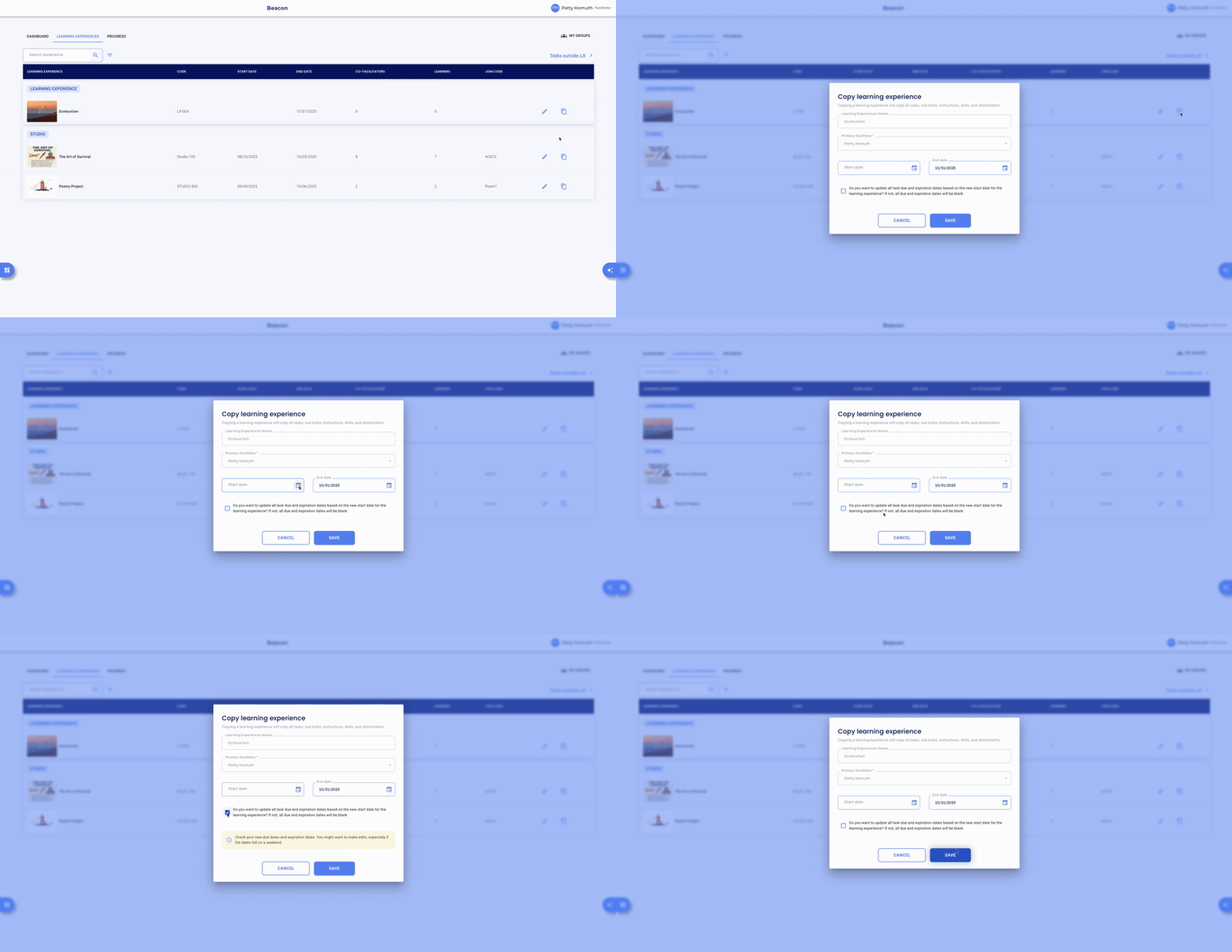
- Locate the Learning Experience you want to copy using one of the following methods:
- Scroll — Browse the full list.
- Search — Use the search field to find by name.
- Filter — Use the filter to narrow results or find an LX that has ended.
- Select the copy icon
 next to the LX.
 - Adjust the following as needed:
- Start Date
- End Date
- Convert task due dates — check this box to align all task due and expiration dates with the new LX dates
- Select Save.
⭐ After copying, you can further customize the LX name, assigned learners, and other settings by editing the LX.
Watch the video walkthrough → Copying a LX
🤔 FAQs
Can I copy an LX that has already ended? Yes: use the filter and select Show all ended to locate it, then follow the steps above. Make sure to update the start and end dates so the copied LX is active.
Can I copy an LX for another facilitator? You can make the copy, but the primary facilitator can only be changed from the Admin profile. Reach out to your admin to have this updated.
Will my tasks copy over too? Yes: all tasks copy with the LX. Use the task date conversion option in step 3 to automatically align due dates with your new LX dates.