
Use this article to troubleshoot common issues you may encounter in Beacon.
Jump To:
Learning Experiences
I can't find my Learning Experience.
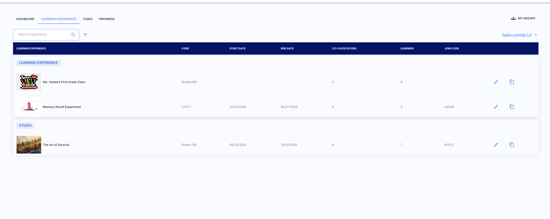 Learning Experiences are archived when their end date passes. To locate an archived LX, navigate to your Learning Experiences, select the search filter icon
  , and check Show all ended to view past LXs. To reactivate, select the pencil edit icon
  and change the end date to a future date. Remove the filter by selecting the X next to the filter icon.

Watch the video walkthrough → How to Find Your LX
I can't find a way to delete a Learning Experience. Learning Experiences cannot be deleted in Beacon. To remove an LX from your active view, archive it by setting an end date. The LX and all its data will remain accessible but will no longer appear in your default view. If you need to reuse or update the LX, select the edit icon to update its details directly.
I need to change the category of a Learning Experience. LX categories can only be managed by an admin. Contact your admin to request a category change.
Groups
A learner isn't showing up in my group.
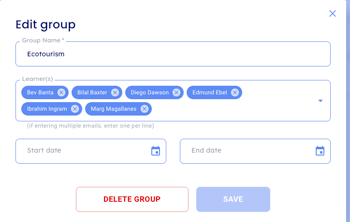 Check that the learner has been added to the group. Navigate to My Groups, select the group the learner should be in by selecting the pencil edit icon
  , and confirm the learner is listed. If they're missing, add them manually. → See: How to Manage Learners in Groups - Facilitator
I added a learner to a group but they're not appearing in my LX.
If you enrolled learners using a group you created, any new additions to that group are automatically reflected in the LX: start by refreshing the page. If the learner still isn't appearing, confirm that the learner was added to the group that was used in the LX, then confirm the learner's account is not deactivated. If the issue persists, submit a help desk ticket.
I can't find a group when filtering in Tasks by Status or Tasks by Skill.
Only groups you have created and Global Groups are available as filters. If you're missing a group, confirm it was created in My Groups and not deleted or end dated - which would archive the group. If you are not the primary facilitator of the group, and it is not a Global group, the group will not be available for filtering. Global Groups are managed by your admin: if one is missing, reach out to them directly.
I accidentally removed a learner from a group.
Re-add the learner to the group. If the learner was enrolled in an LX via that group, they will be automatically re-enrolled once added back. → See: How to Manage Learners in Groups - Facilitator
LX Participants
A learner is enrolled in my LX but I can't see their work.
Confirm the learner is visible in the LX. Then confirm that the learner has been assigned the task. If they have not been assigned, you can select the task card underneath their name and assign the task.
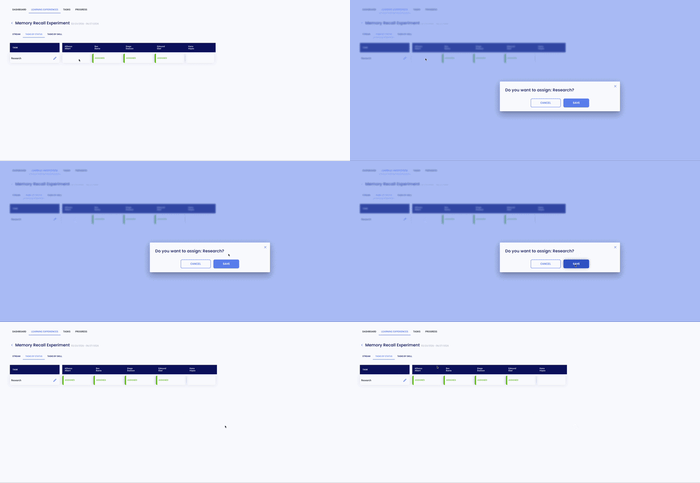
If they have been assigned, confirm the learner has submitted work for the task you're viewing. If you're filtering by group, check that the learner is a member of the selected group. If the learner's work is still not visible, contact your admin to confirm their account is active or submit a help desk ticket.
I need to remove a learner from an LX.
-
If participants were added to the LX through your group, remove the learner from the group that was used by navigating to My Groups.
-
If participants were added to the LX using a Global Group, the learner cannot be removed unless they are removed from the Global Group, which is managed by admin.
-
If participants were added individually, edit the LX participants directly and remove the learner from there.
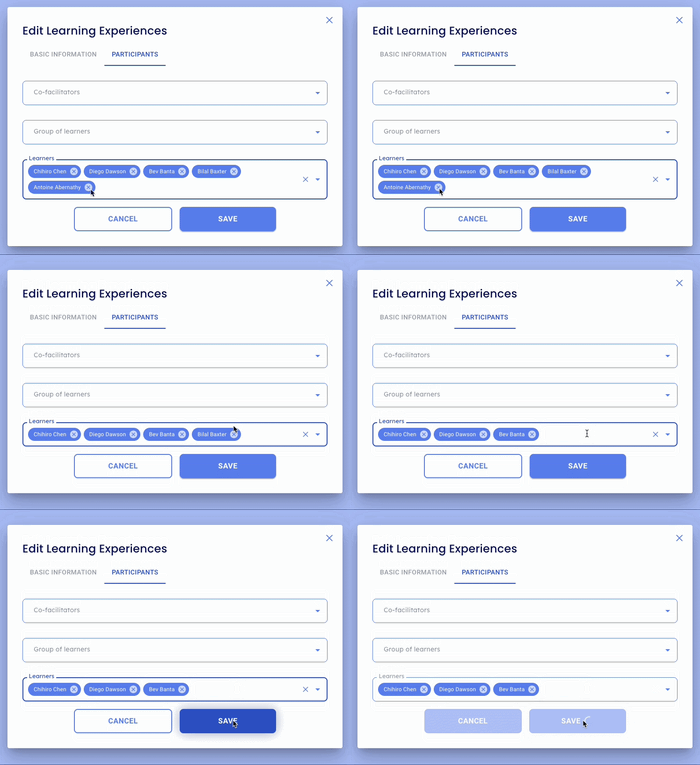
⭐ All of the ratings and tasks still remain with the learner, even if they are removed from an LX.
A learner was added to my group after tasks were assigned — what do I need to do?
The learner will be added to the LX automatically, but any tasks that were already assigned will need to be manually assigned to them. You can do this one of two ways:
- Select the task card for that learner and assign the task directly
- Edit the task and reassign it to all learners
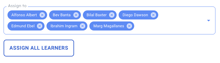
I enrolled learners using a group but some are missing.
Confirm all expected learners are members of the group. If learners are still missing, contact your admin to verify their accounts are active.
Rating Tasks
I can't rate a task - the learner is not enrolled in a competency portfolio.
If the rating scale is greyed out, a learner is not enrolled. When you try to rate a task where a learner is not enrolled in a portfolio for that competency, you will receive this error message:
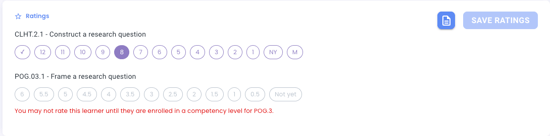 Confirm that you have selected the correct skill/skill code to be rated. If the correct skill is listed and you are still unable to rate, contact your admin with the learner name, grade, competency area, and portfolio (if known) to have them enroll the learner. Admins will typically handle learner enrollments. If you are unable to reach them, you can submit a help desk ticket.