Use this article to view learner progress in Beacon.
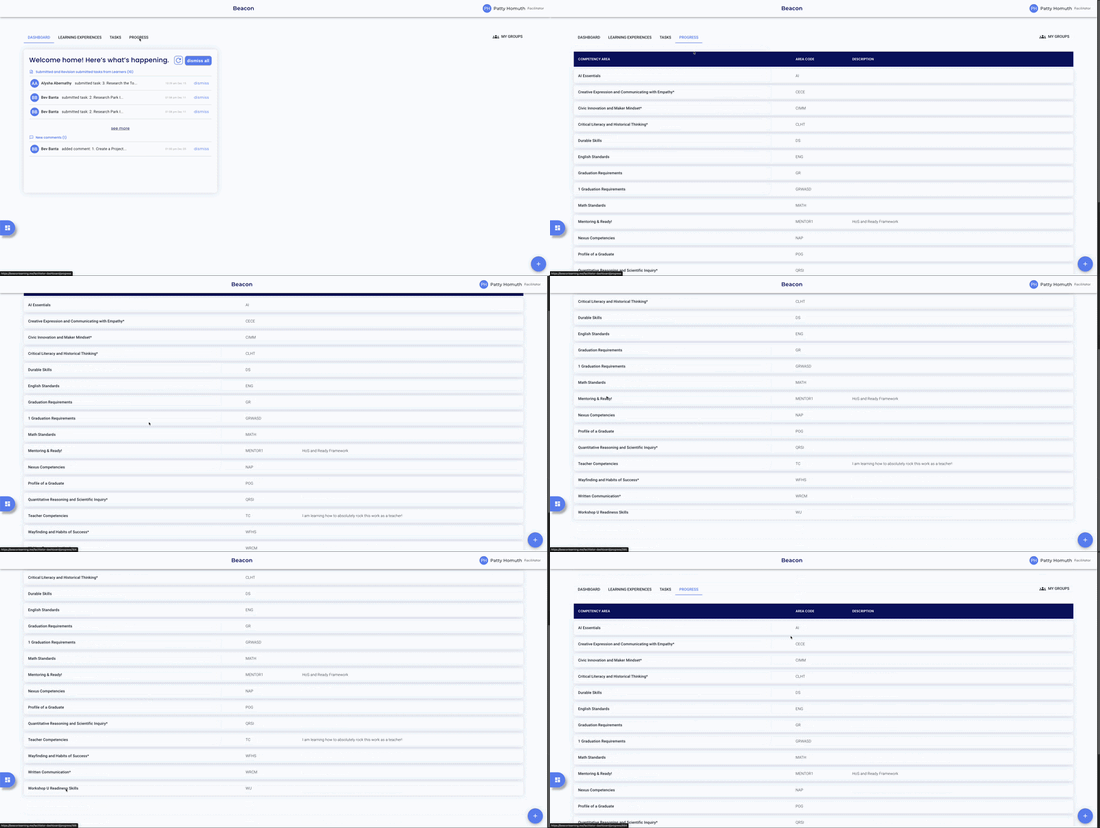
Select the Progress tab from the top navigation.
Jump to:
Viewing Learner Progress
- Select the Competency Area you want to review.
- To filter results, use one of the following methods:
- By Learning Experience — select an LX from the filter to view only learners in that LX.
- By Group — select a group from the filter to view a specific set of learners.
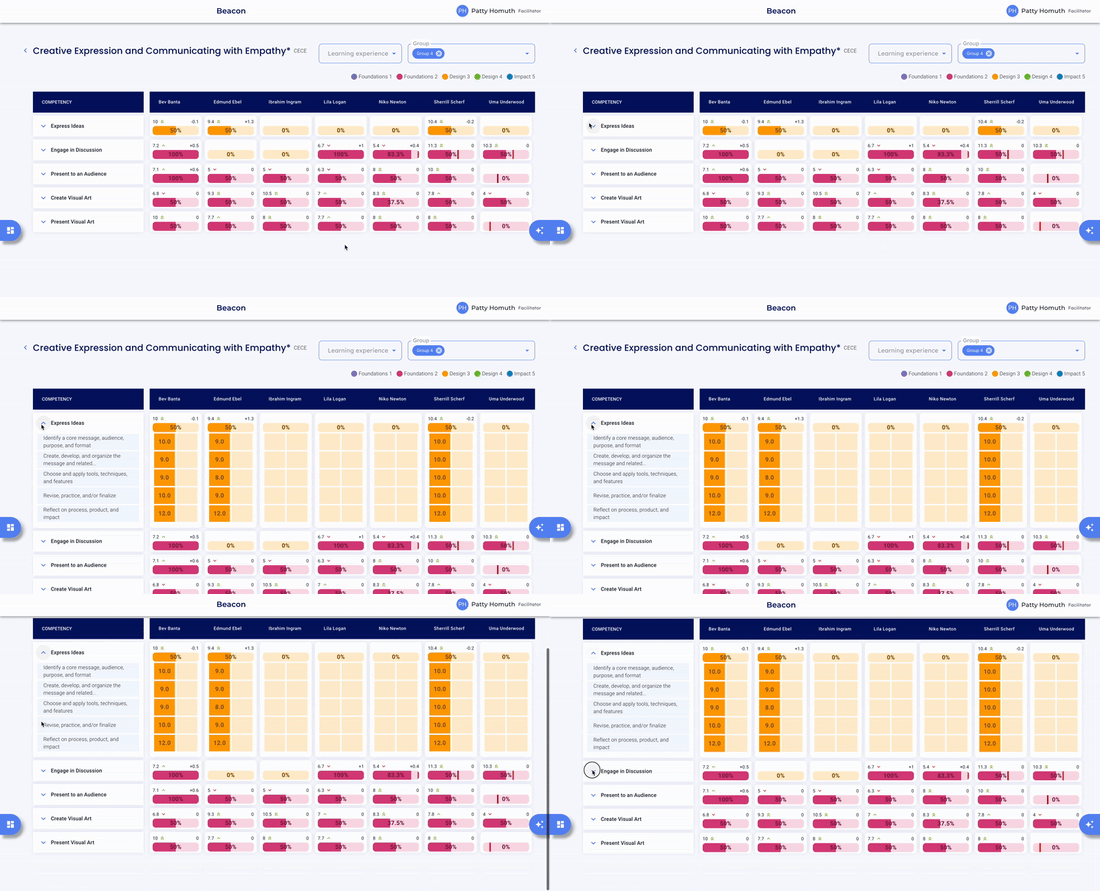
- Review progress by Competency and Skill for the filtered learners.
🤔 FAQs
Can I view multiple Competency Areas at once? Not from the Progress tab: you can view one Competency Area at a time.
What does the progress bar for each Competency mean? The progress bar shows the percentage of completed progress ratings for that Competency, including any missing ratings.
Can I see progress for learners who aren't in one of my groups? Yes — the default view shows all learners. Apply a Group or LX filter to narrow the list.