
Use this article to edit an existing Learning Experience in Beacon.
Select Learning Experiences from the navigation menu.
Jump to:
- Edit from the Learning Experiences List
- Edit from Inside a Learning Experience
- Edit Participants Only
- 🤔 FAQs
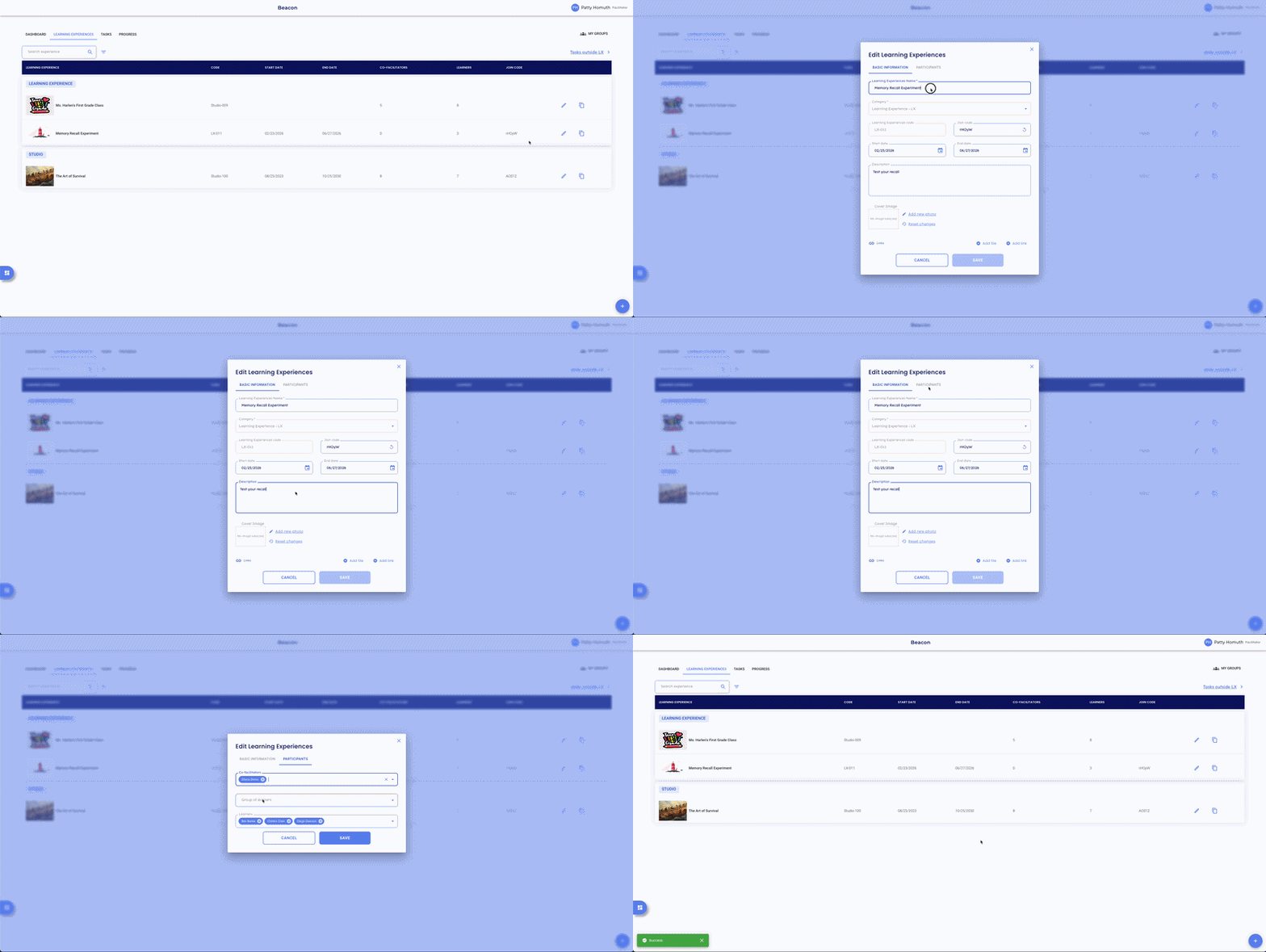
Edit from the Learning Experiences Tab
- Locate your Learning Experience using one of the following methods:
- Scroll — Browse the full list.
- Search — Use the search field to find by name.
- Filter — Use the filter to narrow results.
- Select the pencil icon
 next to the LX you want to edit.
 - On the Basic Information tab, update any of the following:
- LX Name
- Join Code
- Start Date
- End Date
- Description
- Cover Image
- Essential Links
- Select the Participants tab to update Co-Facilitators, Groups, or individual Learners.
- Select Save.
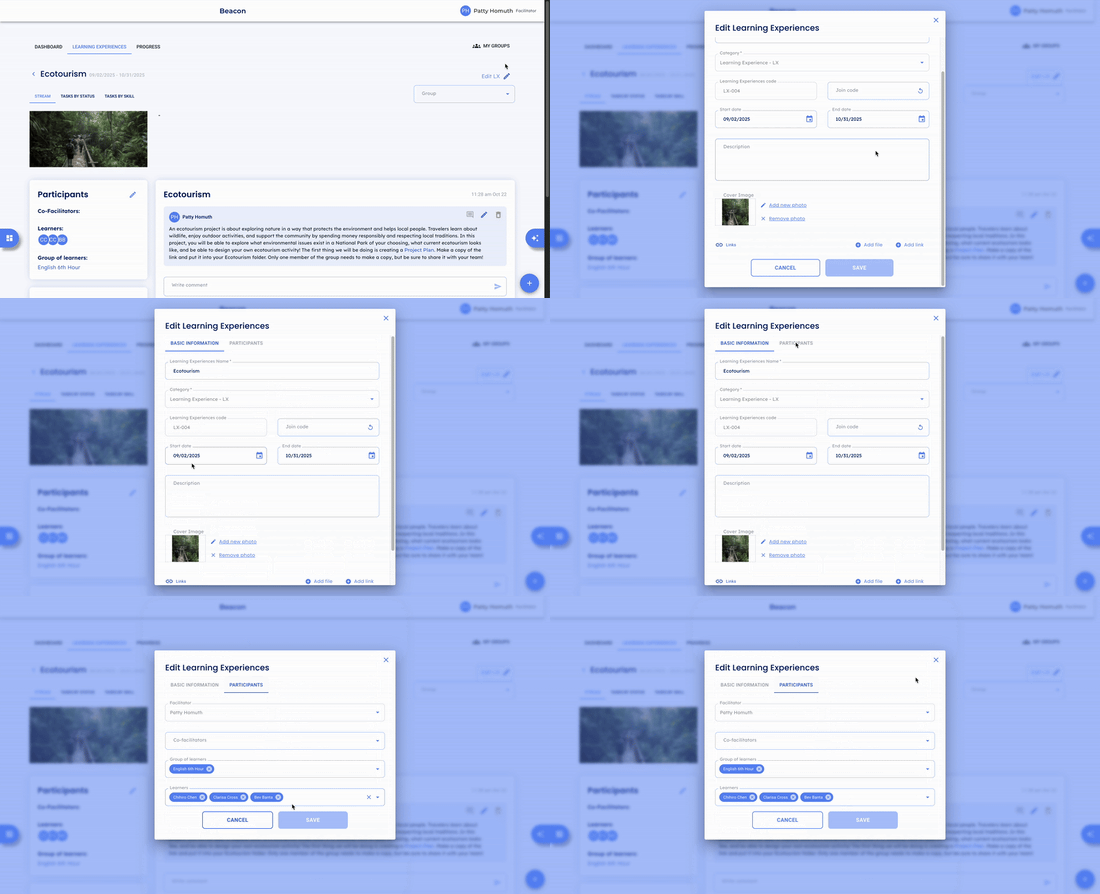
Edit from Inside a Learning Experience
- From inside any LX, select Edit LX under My Groups in the top right corner.
- Update fields on the Basic Information or Participants tab as needed.
- Select Save.
Edit Participants Only
- From inside any LX, select the icon in the Participants card.
- Update Co-Facilitators, Groups, or individual Learners as needed.
- Select Save.
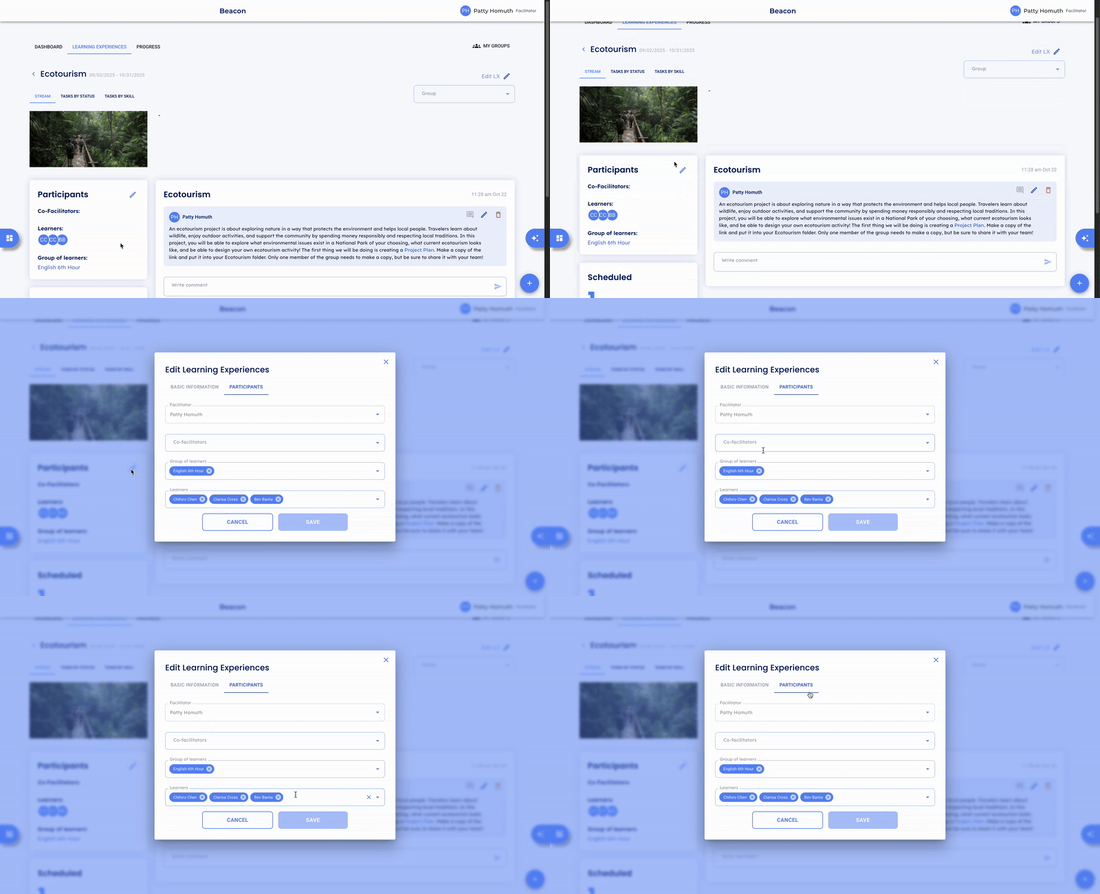
⭐ You can also select the Basic Information tab from here to make any additional edits.
Note: LX categories and codes cannot be edited by a Facilitator once the LX is created. Contact your admin if a category needs to be changed.
🤔 FAQs
I selected the wrong category — how do I fix that? Categories can only be edited from the Admin profile. Reach out to your admin to have this corrected.
Can I add or remove learners after the LX is created? Yes — use any of the three methods above to update participants at any time.
What happens after the end date passes? The Learning Experience is archived and removed from active LX views for both facilitators and learners.