
Jump to:
🧭 Step by Step
Step 1: Ensure Admin Profile
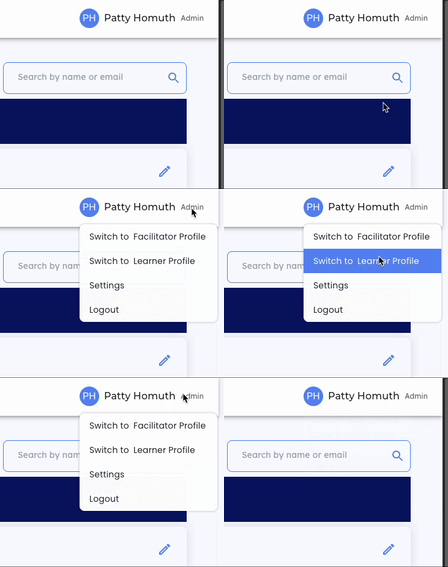
- To create groups, first ensure you are logged in as an Admin. Check your profile at the top right corner of your screen.
Step 2: Locate Groups on the Navigation Menu
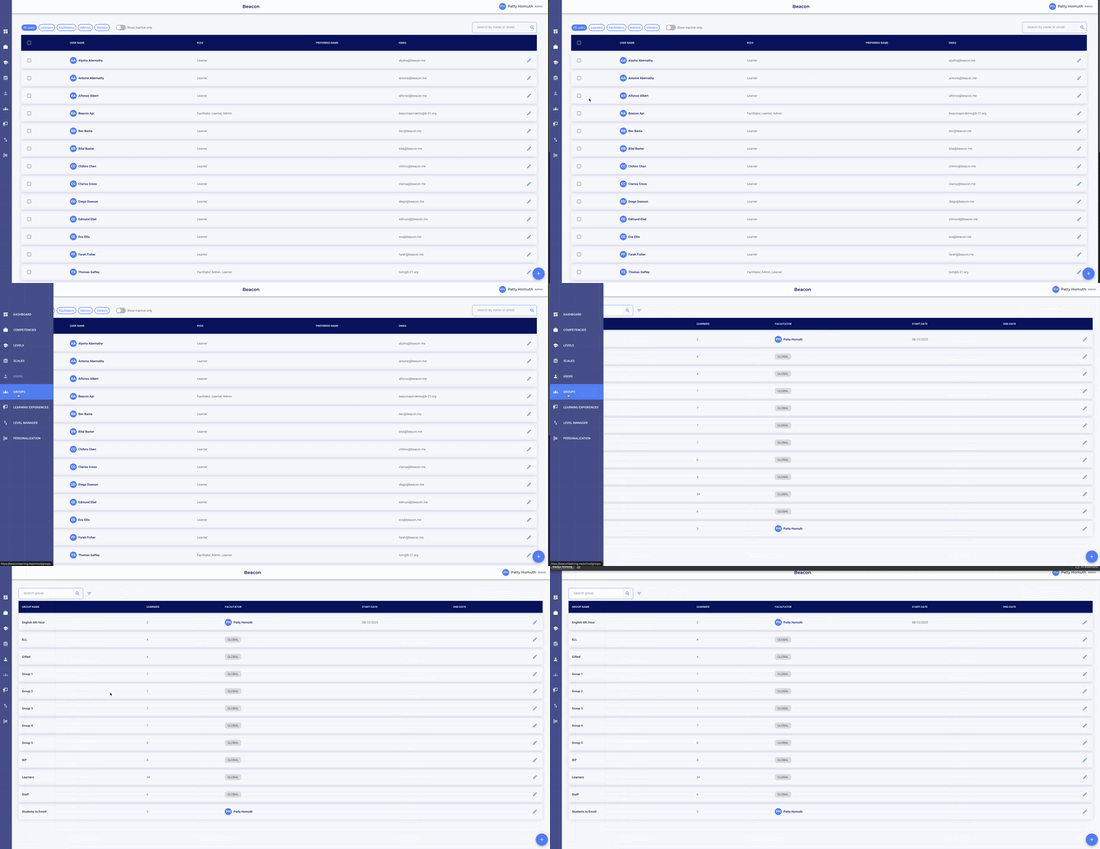
- Once in the Admin profile, you will see Groups by hovering your cursor on the left side of the page to activate the navigation menu.
Step 3: Find the Group to Edit
- Scroll until you find the group name OR
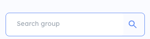
- Use the Search group
 OR
OR - Select the Group Filter icon
 to activate the Filter menu: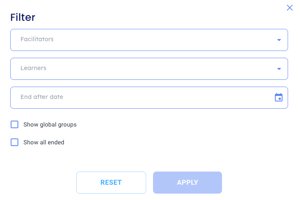
- Once you can see the group you want to edit, select the
 icon to activate the Edit group pop-out.
Step 4: Configure Group Details
- Once in the edit window, you can:
- Edit the Group name
- Add/Remove Primary facilitator
- Add/Remove Learners
- Change the Start/End Dates
- Delete the Group
⭐ You can add learners by selecting individuals from a list or by entering their email addresses directly.⭐
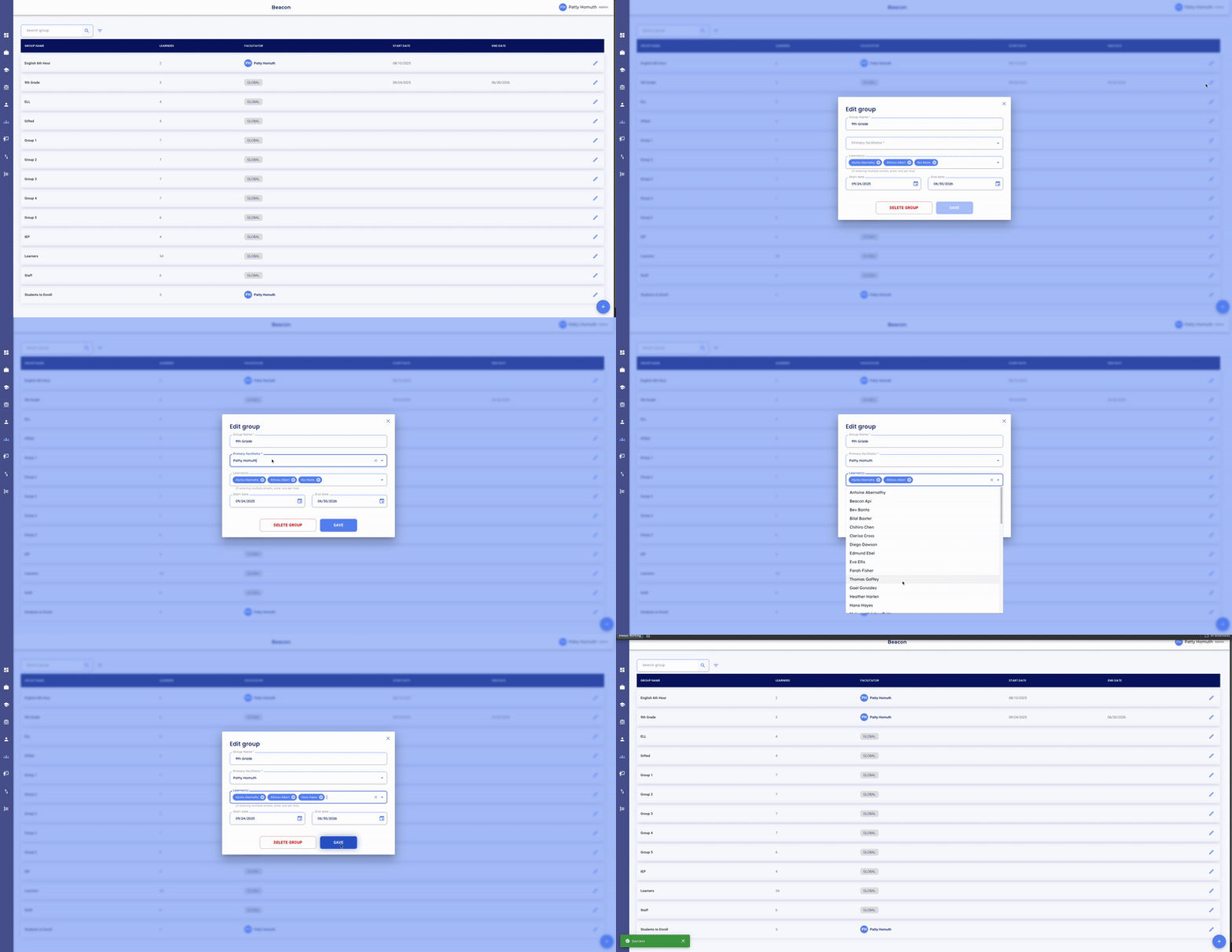
- Your newly created group will be listed on the Groups page. Admins can see and edit all Groups in the system, but if a Primary facilitator is listed, only that user can use the groups as a filter.
💥 See Groups in Action! 💥
Want inspiration? See how admins use Groups to manage learners in the system.
🤔 FAQs
Q: Can I add learners to a group after it's created?
A: Yes, you can update group memberships at any time by editing the group. You can also add a group to a user directly from the Users page.
Q: Can learners see the groups they've been added to?
A: Learners cannot see what groups they have been added to. The group feature is to help admins/facilitators quickly access sets of learners when checking progress, adding to learning experiences, assigning tasks, or enrolling users in portfolios.