
Jump to:
🧭 Step by Step- Edit User
Step 1: Ensure Admin Profile
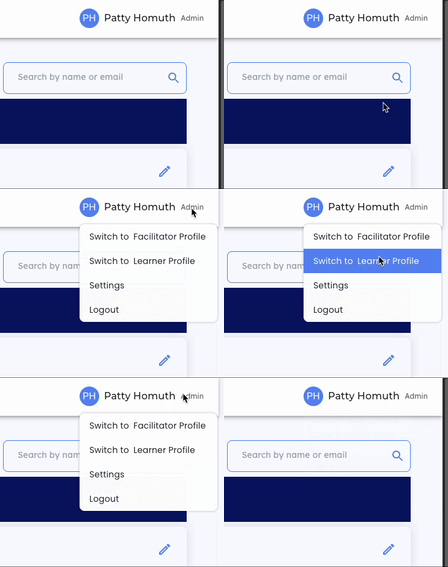
- To create a new user, first ensure you are logged in as an admin . Check your profile at the top right corner of your screen.
Step 2: Locate Users on the Navigation Menu
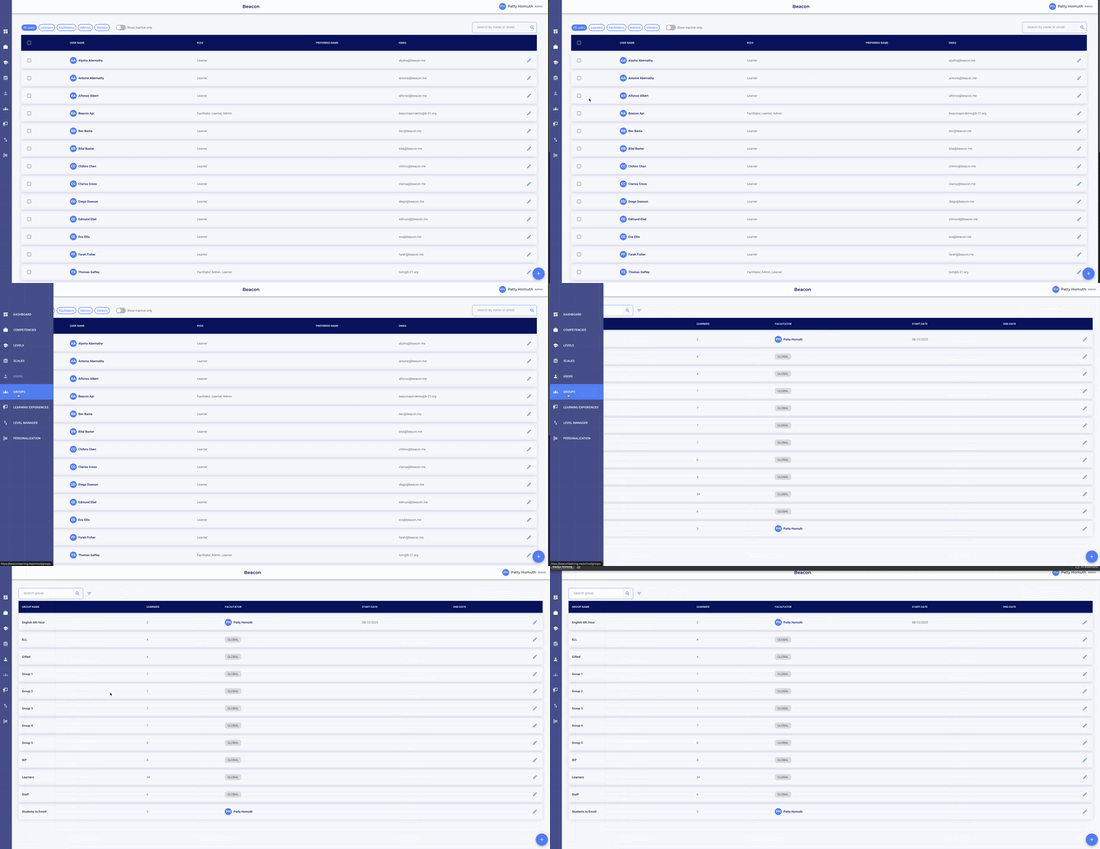
- Once in the admin profile, your default view is the Users page. You can also find it by hovering your cursor on the left side of the page to activate the navigation menu.
Step 3: Search to Find User to Edit
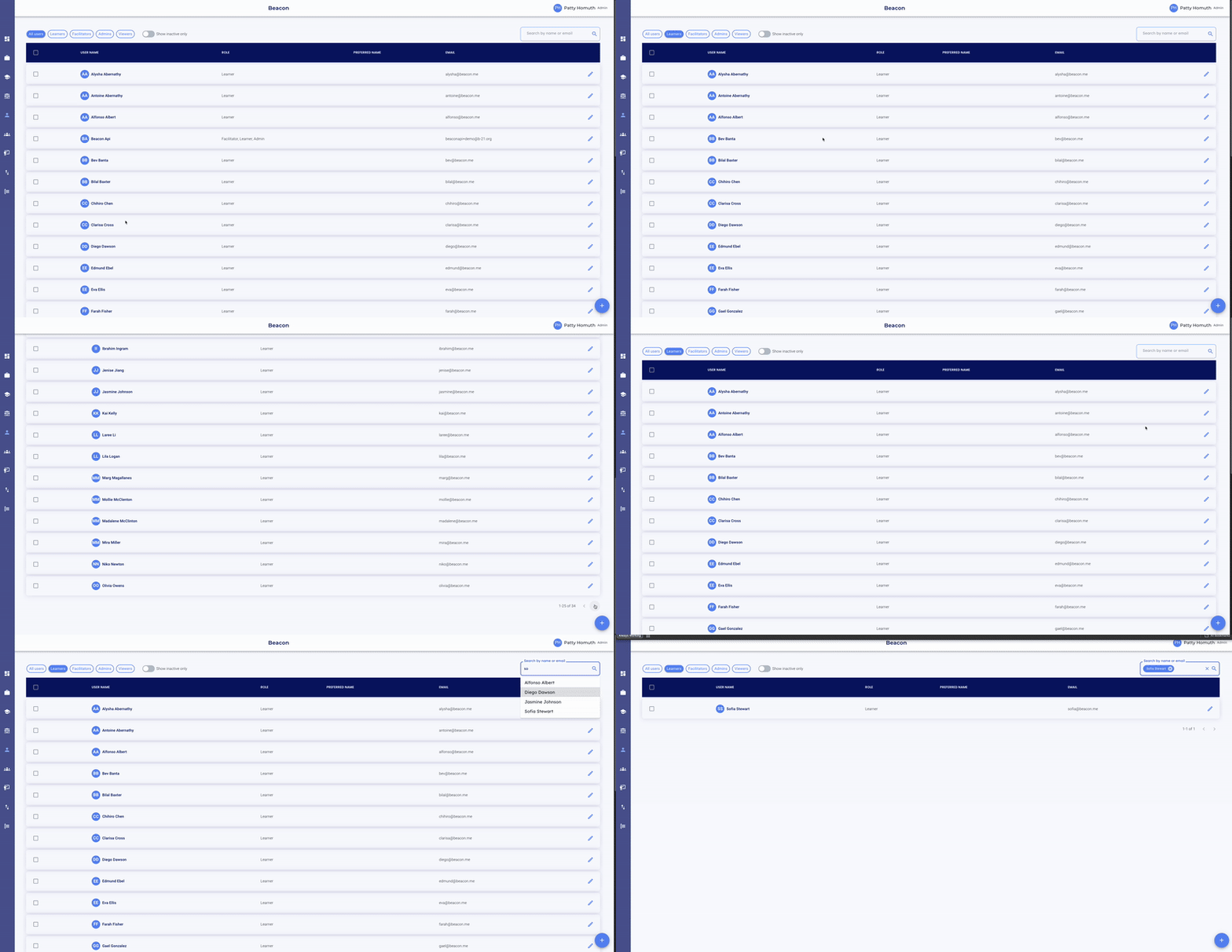
- Filter by User permissions - top left menu
- Scroll through Pages to search OR
- Search by Name or Email
Step 4: Select User to Edit
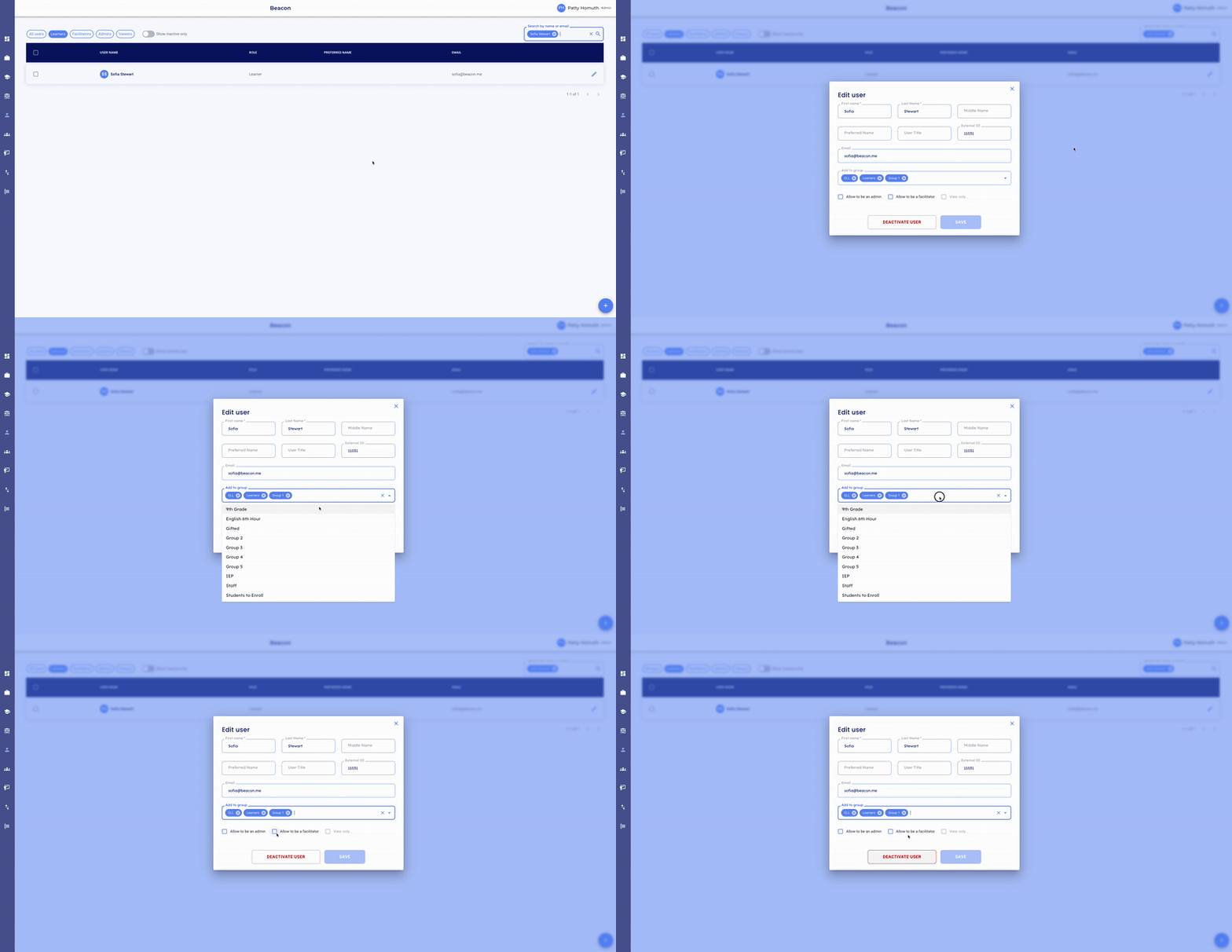
- Select the pencil icon
 next to the name of the User you wish to edit.
Step 5: Edit User Details
- You can edit:
- User Name
- Title
- External ID Number
- Groups the User should be in
- User permissions
- You can also Deactivate the User, which archives the user and their information.
- Select "Save" to keep the changes for this user.
🧭 Step by Step- Deactivate User
Step 1: Ensure Admin Profile
- To create a new user, first ensure you are logged in as an admin . Check your profile at the top right corner of your screen.
Step 2: Locate Users on the Navigation Menu
- Once in the admin profile, your default view is the Users page. You can also find it by hovering your cursor on the left side of the page to activate the navigation menu.
Step 3: Search to Find User to Edit
- Filter by User permissions - top left menu
- Scroll through Pages to search OR
- Search by Name or Email
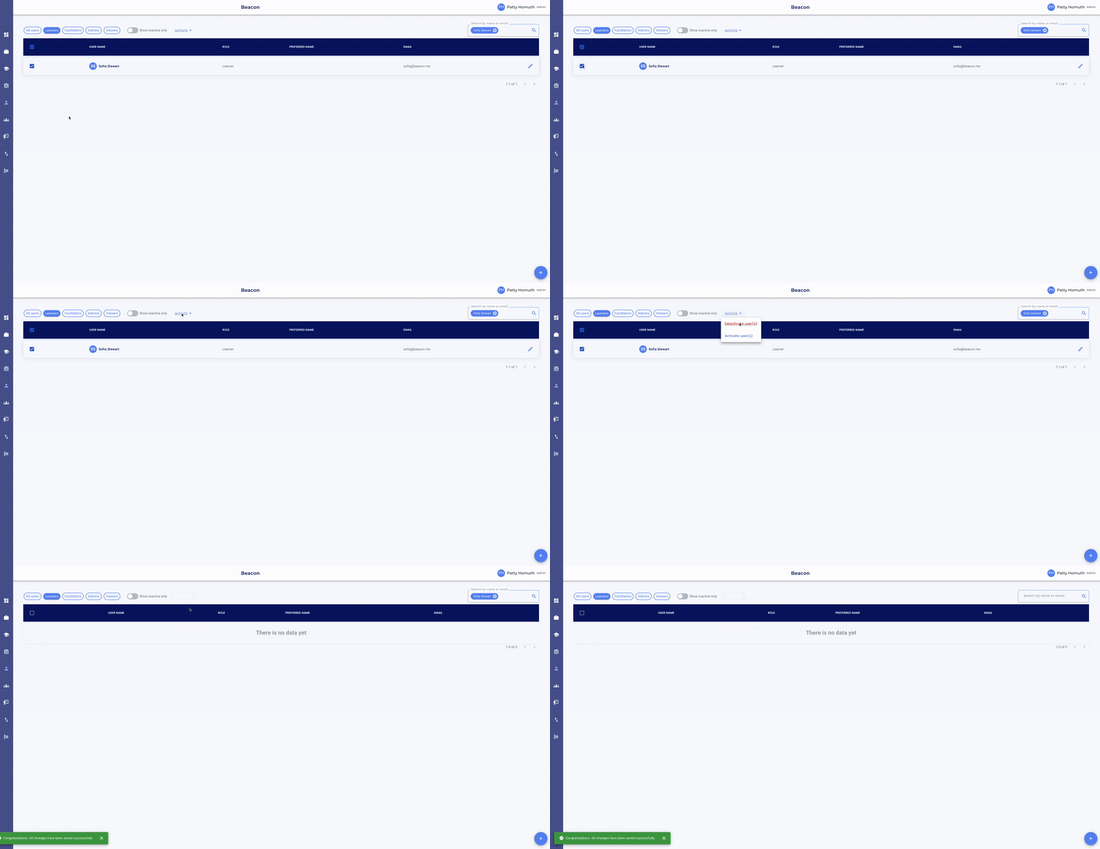
Step 4: Select User to Deactivate
- Select the checkbox next to the name of the User you wish to Deactivate.

Step 5: Deactivate User
- Once you select the checkbox, an actions menu appears
- Select actions
- Select Deactivate user(s)
🧭 Step by Step- Activate User
Step 1: Ensure Admin Profile
- To create a new user, first ensure you are logged in as an admin . Check your profile at the top right corner of your screen.
Step 2: Locate Users on the Navigation Menu
- Once in the admin profile, your default view is the Users page. You can also find it by hovering your cursor on the left side of the page to activate the navigation menu.
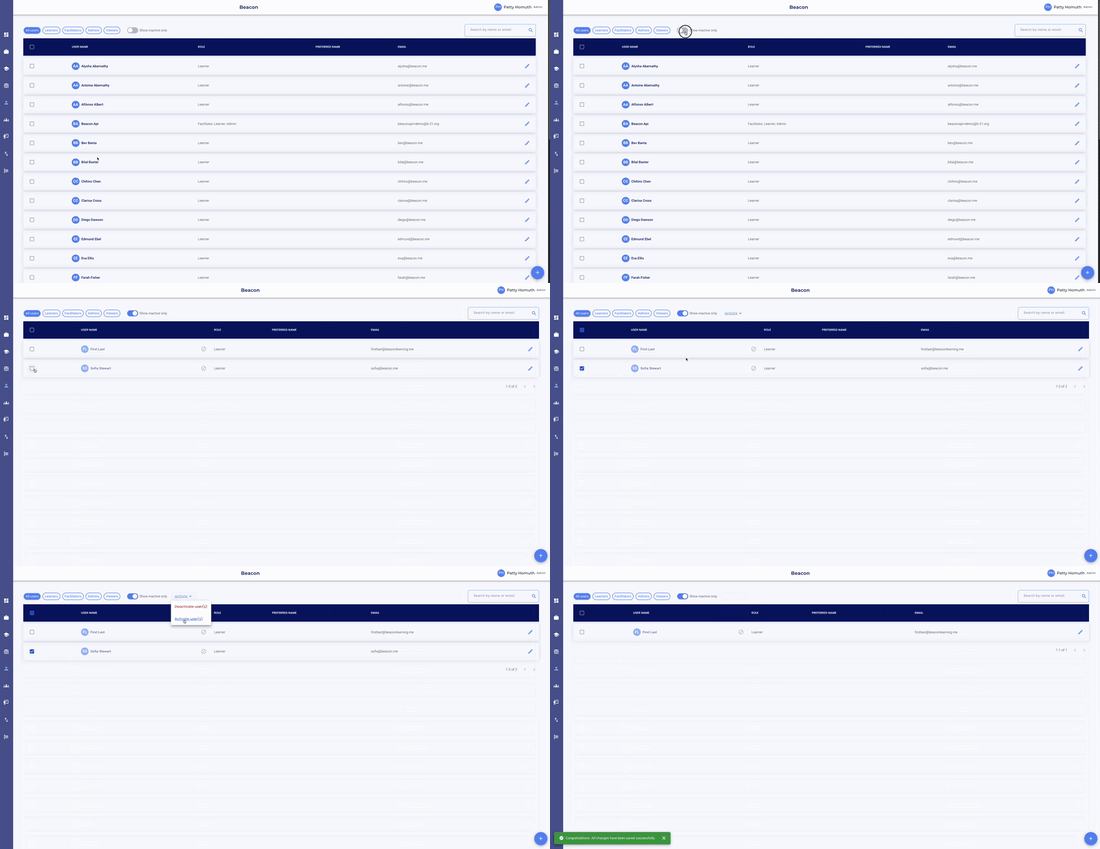
Step 3: Toggle to View Inactive Users
- Toggle Show inactive only to see all Users that have been deactivated
Step 4: Select User to Activate
- Select the checkbox next to the name of the User you wish to Activate.
Step 5: Activate User
- Once you select the checkbox, an actions menu appears
- Select actions
- Select Activate user(s)
🤔 FAQs
Q: Can I change permissions on a user?
A: Yes, you can manage user permissions by editing the user at any time.
Q: I have a user that is no longer with our school. What should I do?
A: You can deactivate the user if they do not need to be in your system. Deactivating will simply archive that user.
Q: Do I have to individually add each student?
A: If we have export automation, new students will automatically be added, but will need to be put into groups and enrolled in portfolios. If we do not have automations, we would to an initial bulk upload of students, and any new students after would need to be added to the system by an admin.