
Jump to:
Step-by-Step Guide
See It In Action
FAQs
🧭 Step by Step
Step 1: Facilitator Profile
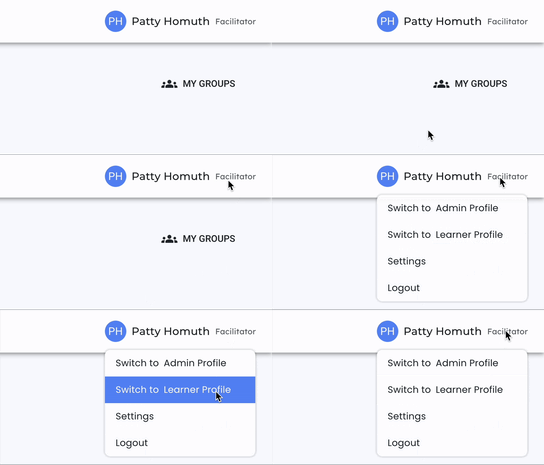
- To create tasks, first ensure you are logged in as a Facilitator. Check your profile at the top right corner of your screen.
Step 2: Navigate to Task Tab
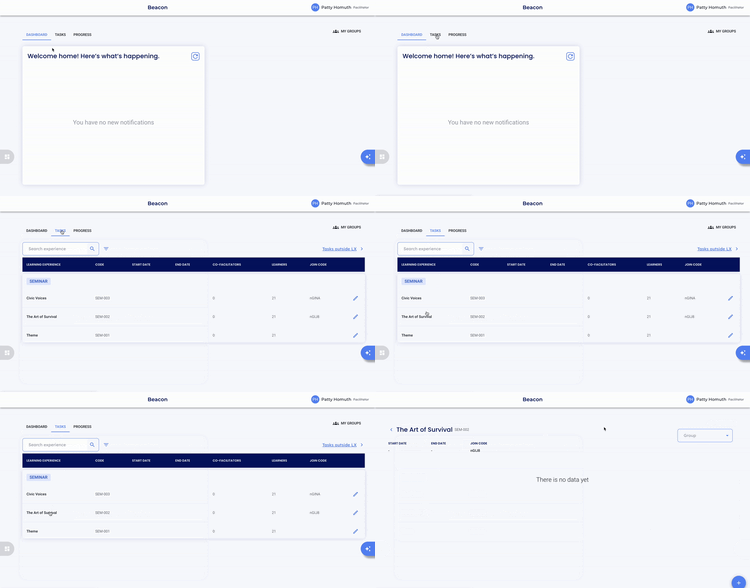
- Once in the facilitator profile, you will see three tabs: Dashboard, Learning Experience, and Progress. Select the Learning Experience tab.
- You will see your learning experiences differentiated by their categories. Select the learning experience where you want to create a task.
- In the bottom right corner of your screen, you will find a blue plus sign
 . Select this sign to start creating your Task.
- A menu titled Create Task will pop up. Complete the fields - any field with an * is required:
- Task Name: Give your task a name.
⭐ Tasks are sorted alpha-numerically rather than by creation order. To control the order, add a number or letter (such as 1., 2., 3. or A., B., C.) at the beginning of each task name.⭐
-
- Subtask of: You can create subtasks once a main task is created. For the first task you create, this field will be empty.
- Type of Task: Select a task type from the dropdown menu or choose 'Other' and enter a custom name. (Required field)
- Set Due and Expiration Dates:
- Due Date - The date by which the task and/or evidence is due.
- Expiration Date - The date after which the task will no longer accept evidence, and a teacher cannot rate it.
- Assign Task: You can assign the task to 'All Learners' or select specific learners.
- Enter Skills for Rating: Select the skills you will be rating for this task. A dropdown of skills from your framework will appear as you type.
- Add Instructions: Enter any instructions for learners.
- Add Links: Links can be used for further instructions, resources, or other information/documents needed for the task.
- Select the save icon 💾 to save any links before saving the task.
⭐ After creating a task, almost all components can be edited if you need to add a learner, change a due date, or add more skills. ⭐
Step 6: Save Task
- Select Save to create the task.
- The task will now be visible in your learning experience.
💥 See It In Action 💥
Want inspiration? See how schools use tasks to guide instruction.
🤔 FAQs
Q: Can I create subtasks for a main task?
A: Yes, you can create subtasks once a main task is created.
Q: What happens if I set an expiration date for a task?
A: After the expiration date, the task will no longer accept evidence, and a teacher will not be able to rate it.
Q: Can I assign tasks to specific learners?
A: Yes, you can assign tasks to all learners or select specific learners.