
Jump to:
🧭 Step by Step
Step 1: Facilitator Profile
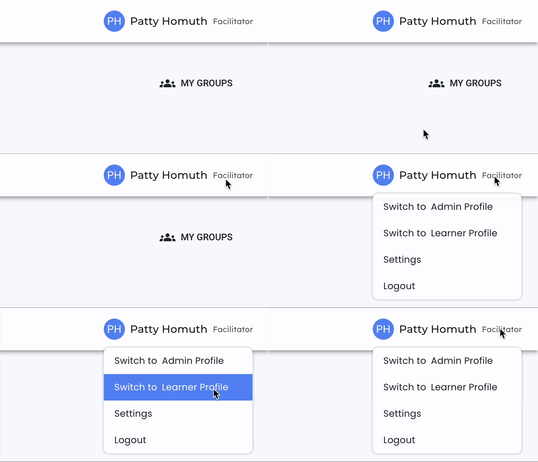
- To create a learning experience, first ensure you are logged in as a facilitator. Check your profile at the top right corner of your screen.
Step 2: Access Global Actions
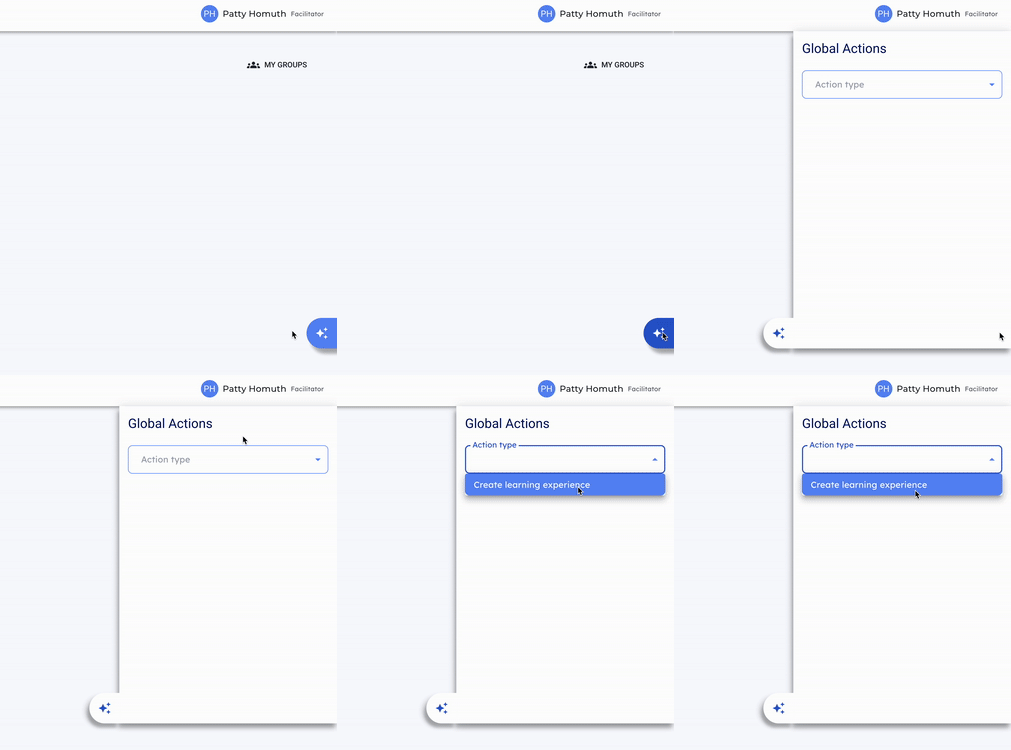
- On the right side of your screen, you will notice a three-star element in a blue tab. Select that icon to open the "Global Actions" menu.
Step 3: Select Action Type
- In the "Global Actions" menu, select "Action type" and choose "Create learning experience" from the dropdown menu.
Step 4: Configure Learning Experience Details
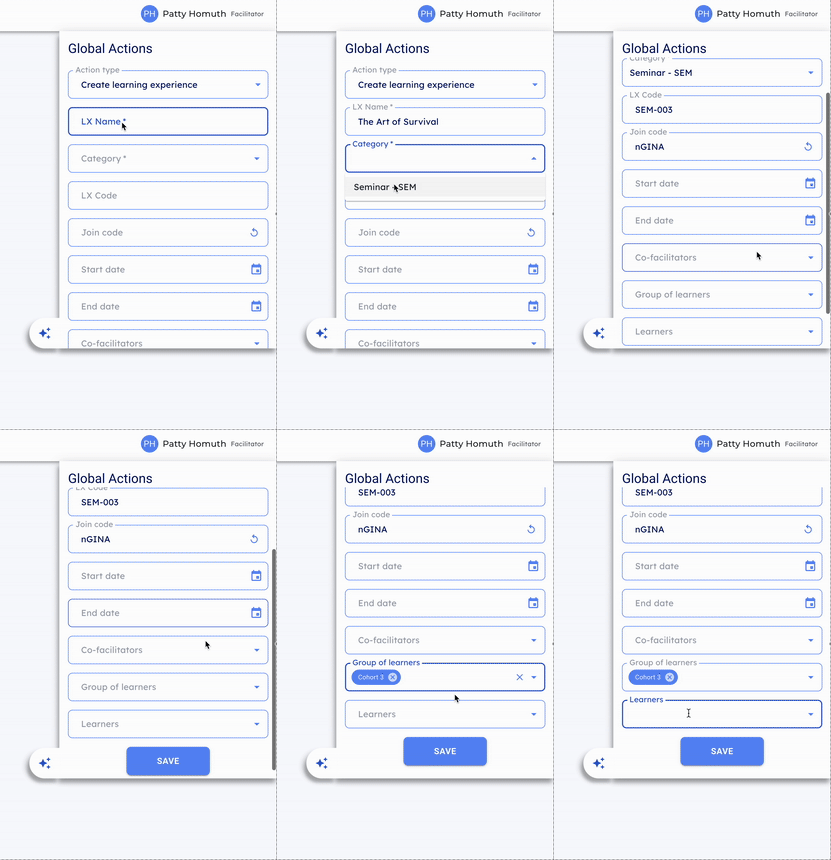
- You will now see a form with several required and optional fields:
- Learning Experience Name (LX Name): Give your learning experience a name. Your school might have a specific naming convention, so be sure to follow their guidance.
- Category: Select a category for your learning experience. Categories can have several functions, and you should consult with your administration for guidance on available categories.
- LX Code: The LX code will generate automatically once you select a category.
- Join Code: Optionally, create a join code that students can use to add your learning experience to their Beacon.
- Start Date and End Date: While both are optional, it's recommended to set a start date so users can see the learning experience. The end date determines when the experience becomes inaccessible.
- Co-Facilitators: Add co-facilitators (co-teachers, special education teachers, or administrators) who will have access to the learning experience.
- Groups of Learners or Individual Learners: Select existing groups or add individual learners to the learning experience.
⭐ After creating a learning experience, almost all components can be edited if you need to extend a time, add a learner, or change a category. ⭐
Step 6: Save the Learning Experience
- Once all required fields are completed, select "Save" to create your new learning experience
💥 See It In Action 💥
Want inspiration? See how schools use learning experiences to guide instruction.
🤔 FAQs
Q: What is the purpose of the category field when creating a learning experience?
A: The category field helps sort and organize learning experiences. You should consult with your administration for guidance on available categories and their usage.
Q: Can I add learners to a learning experience after it's created?
A: Yes, you can manage learners at any time by editing the learning experience.
Q: What happens to a learning experience after its end date passes?
A: After the end date passes, the learning experience will be removed from both facilitator and learner views, and no further changes can be made to the learning experience.