
Jump to:
🧭 Step by Step
Step 1: Ensure Facilitator Profile
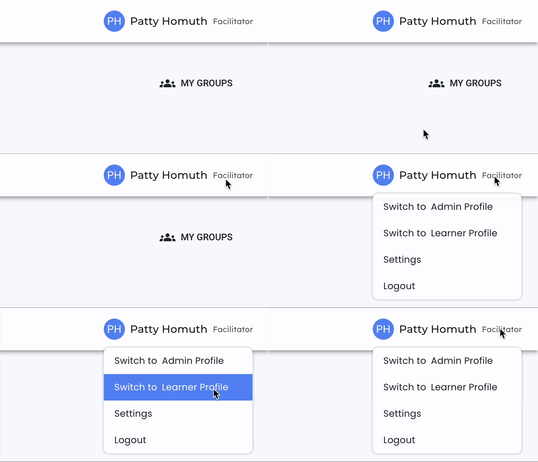
- To create groups, first ensure you are logged in as a facilitator. Check your profile at the top right corner of your screen.
Step 2: Locate Group
- Once in the facilitator profile, you will see "My Groups" directly underneath your profile.
Step 3: Edit a Group
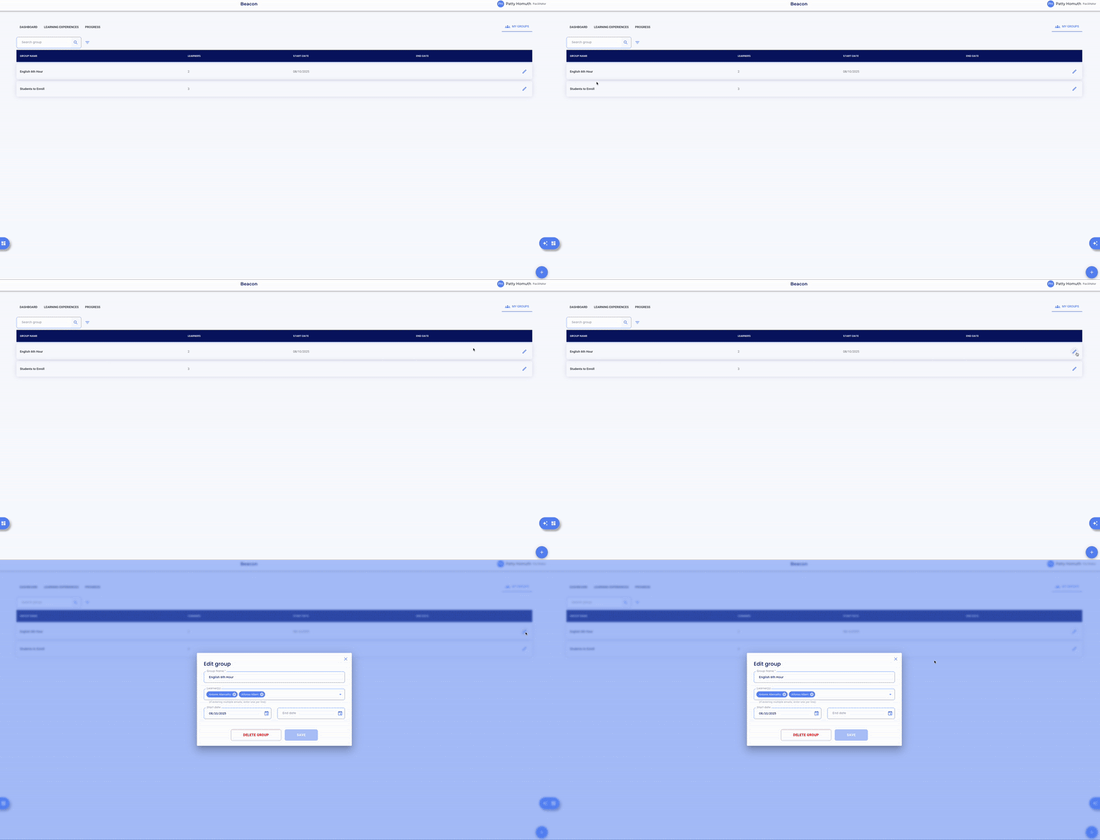
- Select "My Groups". This will redirect you to the Group page.
- Select the pencil
 icon to open a pop-up window titled "Edit group."
Step 4: Configure Group Details
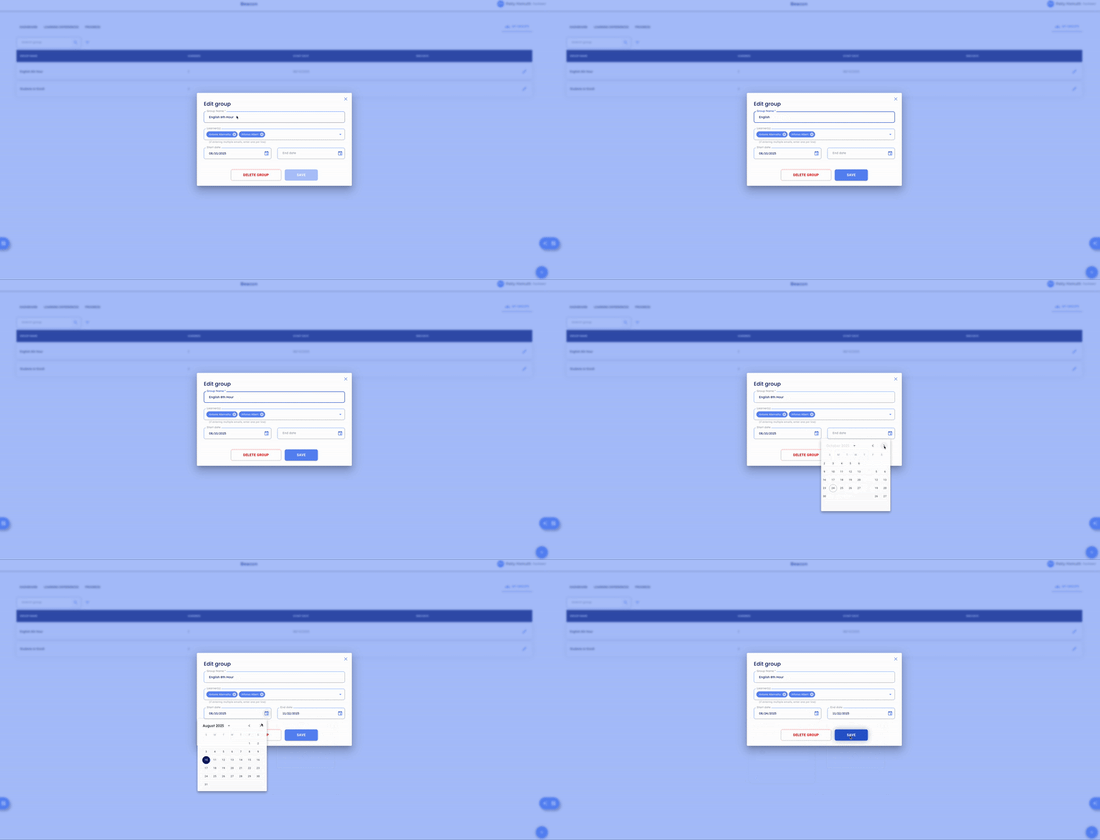
Once in the edit window, you can:
- Edit the group name
- Add/Remove Learners
- Change the Start/End Dates
- Delete the Group
Adding Learners to a Group
-
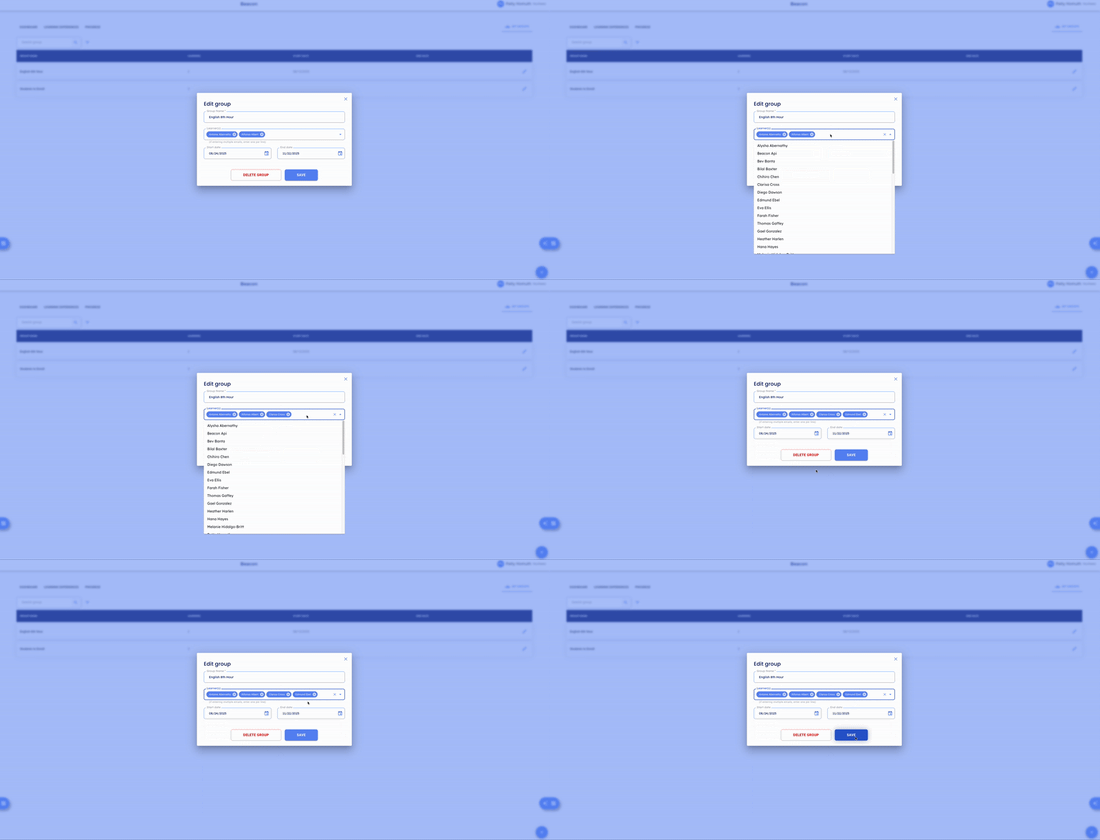
- You can do this by selecting individuals from a list, typing their name until it appears for selection, or by entering their email addresses directly.
- Select "Save" to finish editing the group.
- You can do this by selecting individuals from a list, typing their name until it appears for selection, or by entering their email addresses directly.
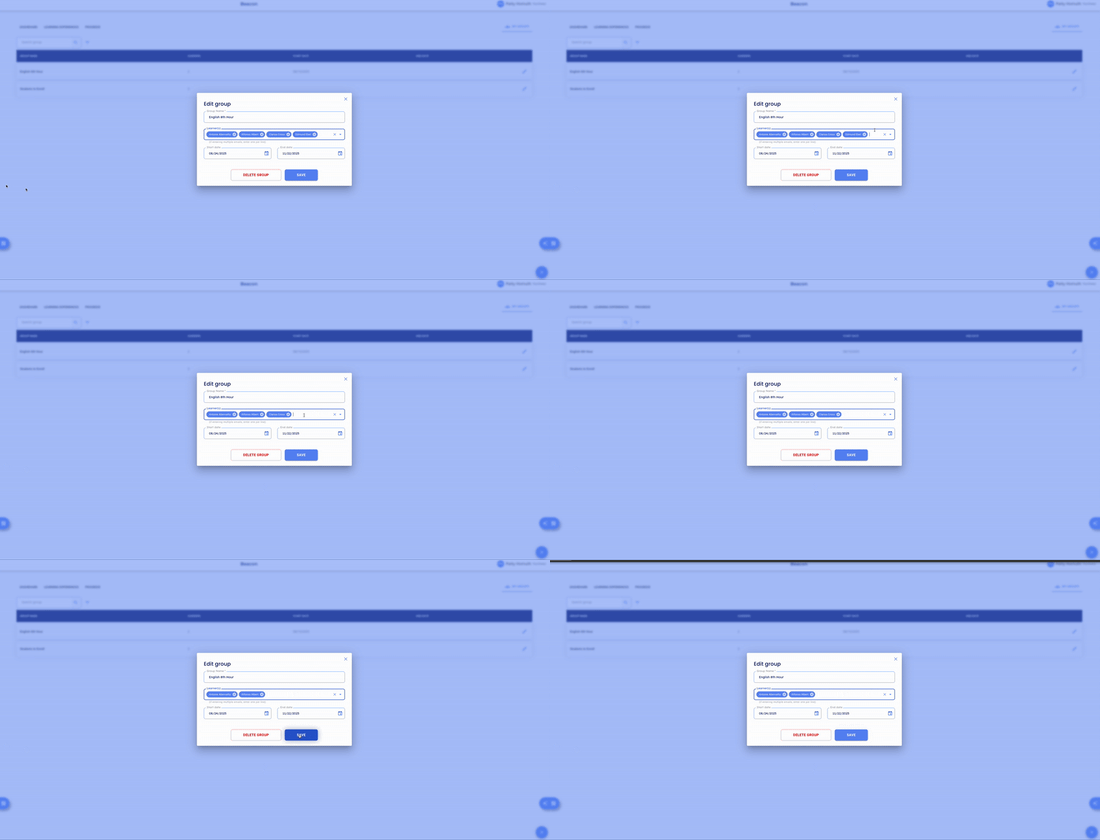
Removing Learners from a Group
-
- You can do this by selecting the
 next to the individuals from the Learners field.
- You can do this by selecting the
-
- Select "Save" to finish editing the group.
- Navigate to "My Groups" in the top right corner. Your newly created group will be listed. You can now use this group as a filter to view progress or tasks.
🤔 FAQs
Q: Can I add learners to a group after it's created?
A: Yes, you can manage group memberships at any time by editing the group.
Q: Can learners see the groups they've been added to?
A: Learners cannot see what groups they have been added to. The group feature is to help facilitators quickly access sets of learners when checking progress, adding to learning experiences, or assigning tasks.