
Use this article to create a new group in Beacon.
Select My Groups from the navigation menu in the top right corner of your screen.
Jump to:
Creating a Group
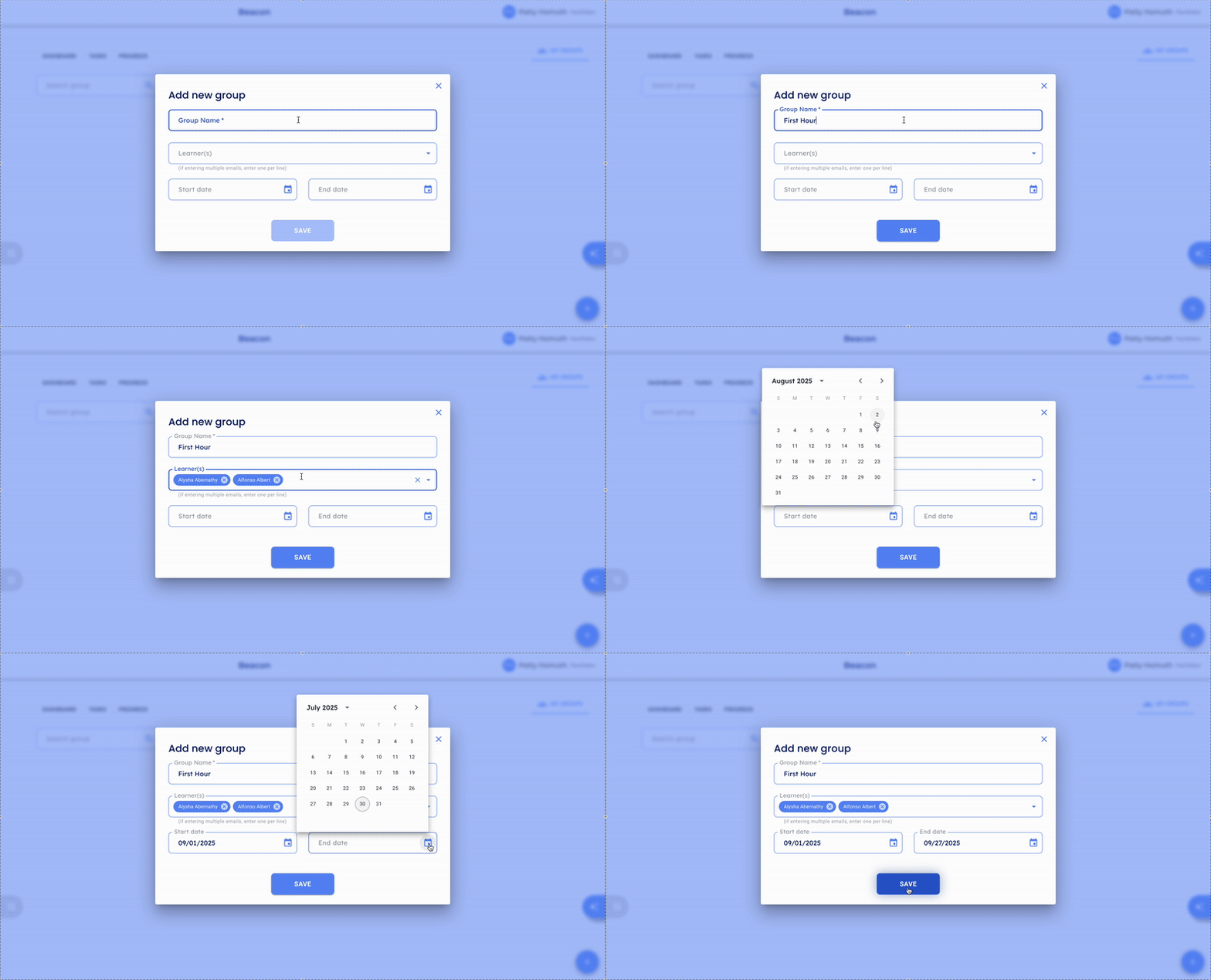
- Select the add
 icon to open the Add New Group window.
 - Enter a name for the group.
- Optionally, set a start and end date for the group.
- Select Save.
⭐ Consider naming groups by section (e.g., "English 9 - Period 3") so they're easy to use as LX filters later. ⭐
Note: Learners cannot see the groups they've been added to.
You can also add learners using email: Watch the video walkthrough → Add Learners with Email
🤔 FAQs
Can I add learners to a group after it's created? Yes. You can add or remove learners at any time. See How to Manage Learners in Groups.
Can learners see the groups they've been added to? No. Groups are a facilitator tool for filtering learners in Learning Experiences and progress views.
What's the difference between My Groups and Global Groups? My Groups are groups you create and manage. Global Groups are set up by your admin and shared across the school. You can use both as filters in Learning Experiences, but only My Groups are yours to edit.