When you login to Beacon the default view is Facilitator and the Dashboard Tab.
Table of Contents
Competency Area
A Competency Area is an overarching category that groups related competencies. For example, a Competency Area might be English Language Arts with the Area Code ELA. Each Competency Area includes:
- Area Code – a short identifier (e.g., ELA)
- Level Set – determines how many levels or Portfolios a learner progresses through in that area
- Scale – defines how performance is evaluated (e.g., 12-point, 4-point, checklist, badges)
Competency
Competencies are subsets of the Competency Area that define what learners are expected to know and be able to do, forming the basis for assessing progress and mastery. In this system, a competency refers to the criteria used to evaluate learners, even if your framework uses different terminology. Each competency has its own code. For example, ELA might consist of these competencies:
- Read Critically (ELA.1)
- Express Ideas (ELA.2)
- Construct Evidence-based Argument (ELA.3)
- Compose Narrative Writing (ELA.4)
- Engage in Discussion (ELA.5)
- Conduct Research (ELA.6)
Each competency contains a list of skills that learners must demonstrate to show proficiency in that competency.
Skills
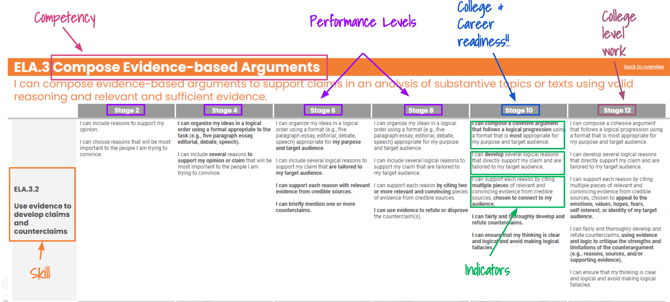
Skills refer to the specific abilities or behaviors learners are evaluated against to determine progress. Each skill has its own code and progression, with indicators that describe what mastery looks like at each stage. For example, ELA.1 - Read Critically may contain these skills:
- Choose and apply reading strategies (ELA.1.1)
- Evaluate the main idea or themes (ELA.1.2)
- Analyze context, point of view, and purpose (ELA.1.3)
- Analyze craft (ELA.1.4)
Progressions/Continua
Each competency includes a continua that outlines its skills and stages or performance levels. These progressions indicate learner growth within and across stages. Performance levels do not correspond to grade levels, and learners can achieve by demonstrating growth, even if they have not yet achieved a specific performance level.
Here is an example of a skill progression:
Ratings
Ratings are measures used to evaluate learner evidence for a specific skill and help learners see how they are performing against a continua. Each skill is assessed using a rating scale established by your site administrator, and individual ratings are averaged to determine the skill’s performance level. These performance levels are then used to calculate overall competency and competency area performance, allowing facilitators to track mastery and growth over time.
Evidence Requirements
Each skill has a set number of evidence requirements that learners must meet to progress. These requirements are pre-set but can be personalized to support individual learner needs. Evidence could include presentations, essays, lab reports, problem sets, or project deliverables, as some examples.
My Groups
My Groups are created and managed by the facilitator. While an Admin user can edit the learners in a group, only the primary facilitator can use the group function. Groups can be organized in different ways to help manage learners within a Learning Experience (LX) or as a quick filter on the Progress tab to view a specific set of learners’ progress.
Once a group is created, it can be used to quickly add learners to an LX. You can also manage participants in your LX using My Groups. For example, if a learner withdraws, they can be removed from the LX group and will no longer appear in the LX, but all of their ratings will remain with them. Similarly, if a learner joins later, you can add them to the LX group and they will appear in the LX. They will still need to be assigned any previous tasks—those are not automatically added—but will receive all new assigned tasks moving forward. Learners can also be added to an LX manually without using the group feature by selecting them in the learner field.
Note: If you delete a group used in an LX, those learners will no longer appear in the LX, but their work will not be lost. However, if you end-date the group, all of their information will continue to appear in the LX, even after it ends. To preserve accurate data, it’s best to end-date groups rather than delete them.
Another benefit of My Groups is using it as a filter to view task status or rate tasks by skill. For example, if you teach multiple sections of the same class, you can use My Groups to view or rate tasks for one section at a time.
My Groups can also be used as a filter on the Progress tab (also called the Progress Dashboard). When you open a competency area, the default view includes every learner in the system—including facilitators and admins—even if they are not enrolled in that area. The easiest way to navigate is by using filters: Learning Experience or Group. The Learning Experience filter lists all active LXs, while the Group filter shows the groups you have created (where you are the primary facilitator) first, followed by Global Groups—groups created by an admin user that anyone can use as a filter.
Example: if you teach three sections of English 9, you might create a group for each section to view progress separately, and another group for all English 9 learners to see overall progress across sections. Only you can see and use those groups. But if an admin-created Global Group called “9th Grade” exists, you can use it to view progress for all ninth graders across facilitators..
Dashboard
The term Dashboard can refer to several different Beacon components:
Dashboard Navigation Page: The Dashboard tab provides a project management-style view for both learners and facilitators to see recent submissions, comments, and upcoming tasks or due dates.
Progress Dashboard: The Progress tab allows facilitators to view any learner’s progress within any competency area.
Staff Dashboards: Staff dashboards are site-specific and provide alternate views of student information. They can be used to access student logs, view and filter student progress, and explore Learning Experience (LX) ratings and details. If your site uses Personal Learning Plans (PLPs), staff dashboards can also provide direct access to them. Some sites may also include a Walkthrough section where facilitators can view walkthrough data. All dashboards use Looker and may require an initial sign-in.
Learning Experience
Learning Experiences (LXs) can be created by either an Admin or a Facilitator. Traditional platforms generally organize learning via classes. In Beacon, LX’s can be organized however your school/organization needs them to be organized. LX’s can be organized with any combination of these:
- A traditional quarter, semester, or year-long course
- A project or studio
- A performance task
- A unit
- An advisory or mentoring group
- Or any other organizing structure unique to your school/organization
Facilitators can create and edit:
- LX name
- Join code
- Start and end dates
- Description
- LX image
- Links/Files
- Learners
- Co-facilitators
The LX is a container for tasks that make up the learning experience.
Learning Experience Categories
When creating an LX, it is required to select an LX Category. LX Categories are created on the admin user profile, and can serve different purposes in that profile.
Schools often create categories based on:
- Subject area
- Block or studio
- Advisory
- Program (if multiple programs exist in a building)
- Type of experience (e.g., academic, workshop)
Check with your admin users to determine how categories are defined for your site. Once a category has been selected and an LX code has been created, they can only be changed by an admin user.
Stream
The Stream tab is the default view for a Learning Experience (LX) and allows facilitators to create and manage posts for learners. Posts can have comments enabled or disabled, scheduled for a later date, or saved as drafts, and facilitators can post across multiple learning experiences. The Stream tab also allows facilitators to edit participants, manage posts, and adjust LX features.
Tasks by Status
Another navigation option in the Learning Experience (LX) is Tasks by Status, which allows facilitators to create and view the task structure for their LX. Learners see the same task structure, which can include tasks and subtasks to help organize the learning experience. Tasks by Status provides an overview of where learners are in completing their tasks, and facilitators can click into each task to rate, comment, add evidence, or personalize it for individual learners. Tasks can be edited or filtered by groups on this page.
Tasks by Skill
The last navigation option in a Learning Experience (LX) is Tasks by Skill, which provides a traditional gradebook-style view with learners listed down the left side and tasks across the top. Using the arrow to expand a task displays all associated skills, allowing facilitators to select ratings without opening each learner’s task. To complete a task or change its status, facilitators still need to open the individual learner’s task card.
Personalization
Any task can be personalized for any learner by adjusting due or expiration dates, adding instructions or links, or modifying the skills attached to the task. A task can also be unassigned from a learner. If evidence or performance level requirements need to be changed, those adjustments can be made through the admin profile.
Progress
The last navigation tab on the main facilitator menu is Progress. The Progress tab displays every competency area in the Beacon system, not just those a specific facilitator uses. When a competency area is selected, the default view shows every learner in the system—including facilitators and admins—even if they are not enrolled in that area. The most effective way to view progress is by using the filters: Learning Experience or Group.
Performance Level
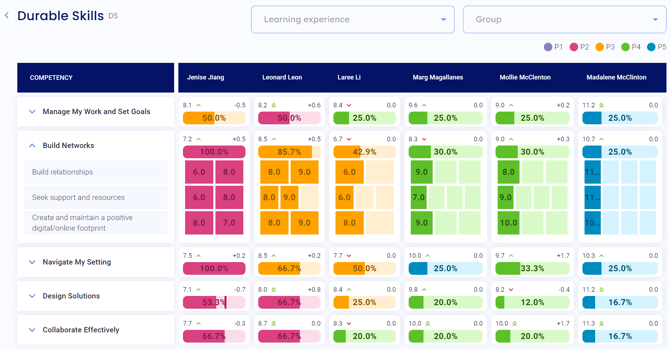
Performance levels in a competency are calculated as the average of the skill ratings for that competency. Beacon uses a best-of system, meaning if there are more skill ratings than evidence requirements, only the highest ratings are used in performance calculations. The performance levels of all competencies are then averaged to determine the overall performance level in a competency area.
Growth
Beacon also tracks growth within each competency. The first ratings in a skill serve as the baseline performance level once every skill in a competency has been rated at least once, or 50% of the evidence requirements across skills have been rated. Beacon monitors progress as growth, which can be positive or negative. Negative growth indicates that initial ratings were higher than more recent ones. Growth is averaged across skills within a competency and then averaged again to determine overall growth in the competency area.
Progress Percentage
Each competency area includes a progress percentage bar, which shows the percentage of evidence requirements that have been rated for that competency. This bar reflects progress in completing evidence, not performance level.
In this image, the average performance level for this competency is the top left number, the average growth is the top right number, and the 50.0% is the progress in the competency.
Portfolios
A portfolio is a body of work that demonstrates a student’s level of mastery of a competency. Multiple portfolios can be used together to scaffold students’ progress towards college and career readiness--like levels of a video game. Competencies and skills remain the same throughout all portfolios, but evidence requirements may change.
Here is an example of a portfolio from a learner perspective in a single portfolio: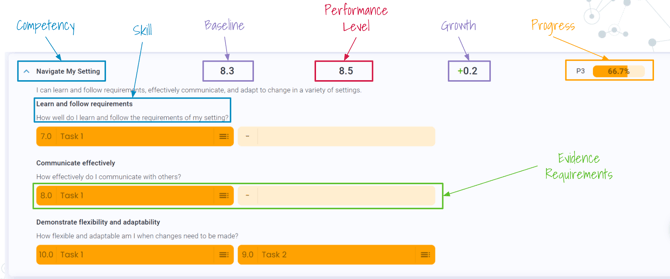
Here is how portfolios look from a facilitator perspective on the progress tab in the Durable Skills competency area:
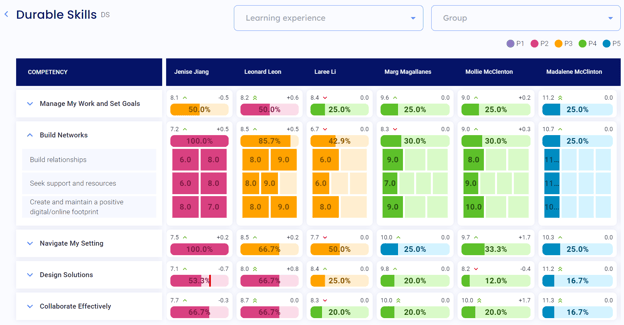
Across the top and underneath the filters, are the names/number of portfolio levels for a competency area:

Each learner is enrolled in a portfolio level for a competency. Learners can be working in multiple portfolio levels at the same time, but a portfolio is not considered ‘complete’ until all competencies have flipped.
Flipping
Each portfolio level has a minimum performance level, which is the lowest average rating required for completion. Each portfolio also has a flip threshold, an average rating that allows a learner to advance to the next portfolio level automatically. Learners move to the next portfolio level for a competency once all evidence requirements have been completed at or above the minimum performance level. A learner who has reached the minimum performance level is indicated with a green ⌃. If a learner has completed all evidence requirements and has a single green ⌃, they can be manually flipped into the next portfolio level. A learner on track to flip based on their performance level is shown with a double green ⌃. If a learner’s performance level is below the minimum, a red ⌄ indicates they are not on track.