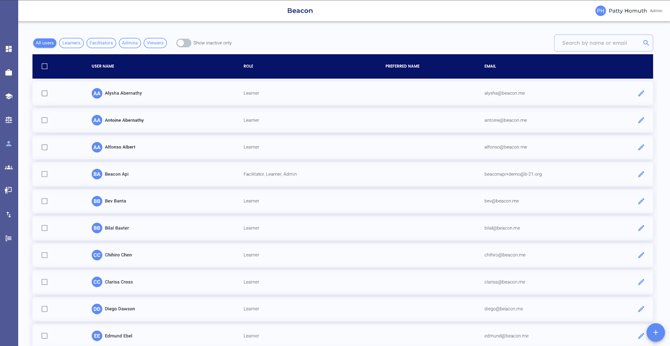
When you login to Beacon and select your admin profile, the default page is the Users page.
The navigation menu on the left provides access to different features in Beacon. The Admin Glossary explains each menu term.
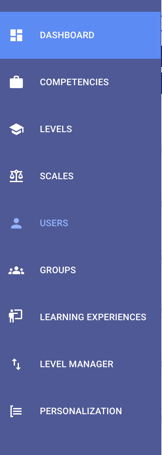
Table of Contents
- Competencies
- Levels
- Scales
- Users
- Groups
- Learning Experiences
- Learning Experience Categories
- Level Manager
- Personalization
Competencies
The Competencies menu lists all your school’s Competency Areas in alphabetical order. In this system, a “competency” refers to the criteria used to evaluate learners, even if your framework calls them something else. For example, a Competency Area might be English Language Arts with an Area Code of ELA.
Each Competency Area is assigned:
- Area Code – a short identifier (e.g., ELA)
- Level Set – determines how many levels or portfolios a learner progresses through in that area
- Scale – defines how performance is evaluated (e.g., 12-point, 4-point, checklist, badges)
Example:
- Competency Area: Creative Expression and Communicating with Empathy
- Area Code: CECE
- Description: N/A
- Levels Set: 5 Levels
- Scale: 12-point
Within each Competency Area are Competencies.
Example:
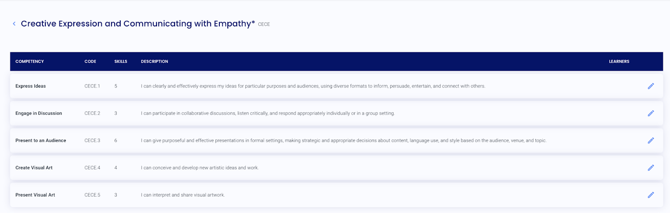
- Competency Area: Creative Expression and Communicating with Empathy
- Competencies:
- Express Ideas
- Engage in Discussion
- Present to an Audience
- Create Visual Art
- Present Visual Art
Each Competency has its own code, number of skills, and description.
Example:

- Competency Area: Creative Expression and Communicating with Empathy
- Competency: Express Ideas
- Competency Code: CECE.1
- Number of Competency Skills: 5
- Competency Description: I can clearly and effectively express my ideas for particular purposes and audiences, using diverse formats to inform, persuade, entertain, and connect with others.
Each Competency represents a Skill (or set of skills) that is evaluated to track progress.
Example:
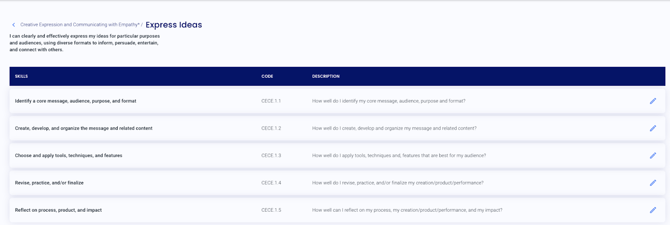
- Competency Area: Creative Expression and Communicating with Empathy
- Competency: Express Ideas
- Competency Skills:
- Identify a core message, audience, purpose, and format
- Create, develop, and organize the message and related content
- Choose and apply tools, techniques, and features
- Revise, practice, and/or finalize
- Reflect on process, product, and impact
Each skill has its own code and description.
Example:
- Competency Area: Creative Expression and Communicating with Empathy
- Competency: Express Ideas
- Competency Skill: Identify a core message, audience, purpose, and format
- Skill Code: CECE.1.1
- Skill Description: How well do I identify my core message, audience, purpose, and format?
These skills have a specific number of Evidence Requirements that learners must complete to demonstrate mastery in each portfolio and advance within the Competency Area.
Example:
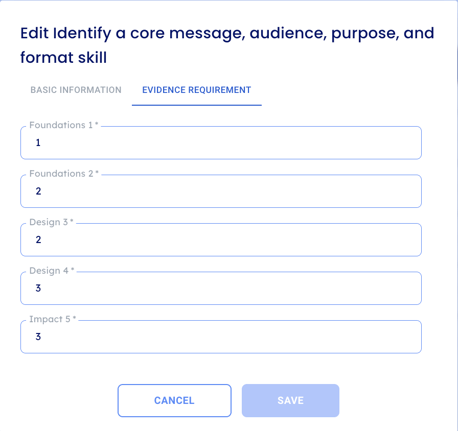
This shows the number of evidence requirements in each of the 5 portfolio levels for the skill: Identify a core message, audience, purpose, and format.
- Foundations 1: 1 Evidence Requirement
- Foundations 2: 2 Evidence Requirements
- Design 3: 2 Evidence Requirements
- Design 4: 3 Evidence Requirements
- Impact 5: 3 Evidence Requirements
All competencies, skills, and evidence requirements connect to a school’s framework, and these should be determined before users are in the Beacon LMS.
Levels
Levels define the minimum performance required for each assigned portfolio. You can also think of levels as how ratings translate into progress.
A portfolio is a container of competencies, skills, or evidence that a learner must complete. Each portfolio level includes:
- A unique code
- A unique color
- A minimum performance requirement
- A threshold for automatic advancement
- A minimum growth requirement
These elements are required regardless of the scale(s) your school uses.
Progression:
- Multiple levels show the progression learners follow as they complete portfolio requirements.
- Some portfolios may have only one level. In this case, completing the requirements ends the sequence.
- Completing the highest level in any portfolio also ends the sequence.
Levels:
- Names can be edited in the system
- Cannot be deleted by schools
- Can only be changed by Building 21 once configured
Scales
Scales are used to rate student performance and measure outcomes. They are also used later if a school converts performance into grades.
In Beacon, multiple scales can exist, but only one scale can be assigned to a Competency Area.
- Example:
- ELA → rated on a 12-point scale
- Math → rated on a 4-point rubric (e.g., Emerging, Approaching, Proficient, Mastery)
- Not allowed: ELA using both a 12-point scale and a rubric within the same Competency Area Code.
Each scale includes:
- Rating Name – what students and facilitators see (e.g., “Proficient”)
- Rating Value – the numeric value used to calculate progress
Scales can be set to count in different ways:
- Performance – used as the learner’s rating (e.g., Proficient = 3)
- Actual Progress – included in the progress calculation
- Potential Progress – visible but not factored into the calculation
Example:
A rating of Missing/Missed Opportunity may count for potential progress only. This allows it to appear in reports but does not reduce the student’s progress score by counting as a zero.
Users
Beacon has four user types, each with specific permissions:
- Admin
- Only role that can access the Admin Menu
- Can also act as a Facilitator and Learner
- Facilitator
- All facilitators are also learners
- Can view and rate any learner’s progress
- Can create learning experiences, tasks, and groups
- Learner
- Can submit evidence and tasks for evaluation
- Can create tasks outside of a learning experience
- Viewer
- Linked to a specific learner
- Can view that learner’s progress
- Cannot rate or submit evidence
Users can be managed by:
- Bulk Upload: Users can be added with an import template.
- Automation: Once integrated, accounts can sync automatically through the school’s SIS.
- Manual Additions: If SIS integration isn’t available, users can be added through the Admin Console.
- Filters & Search: Users can be filtered by role or searched by name.
- Deactivation: Users no longer with the school can be deactivated.
Groups
Groups can be created and used in different ways, such as:
- Year of graduation (e.g., Class of 2027)
- Grade level
- Facilitator
- Course
- Cohort
- Subgroup (e.g., ELL, SPED)
- Distinguishing students from staff
Groups created in the Admin Profile without an assigned facilitator are considered global. Global groups are visible to all facilitators and can be used to filter progress or add learners to a Learning Experience.
Learning Experiences
Learning Experiences (LXs) can be created by either an Admin or a Facilitator. Traditional platforms generally organize learning via classes. In Beacon, LX’s can be organized however your school/organization needs them to be organized. LX’s can be organized by any combination of these:
- A traditional quarter, semester, or year-long course (most often)
- A project or studio (most often)
- A unit (most often)
- An advisory or mentoring group
- Or any other organizing structure unique to your school/organization
Facilitators can edit:
- LX name
- Join code
- Start and end dates
Admins can edit all components of an LX. This includes everything a facilitator can do, plus the ability to:
- Copy and reassign an LX to another facilitator
- Add or remove co-facilitators
- Edit the LX name, category, and code
- Change the primary facilitator
Viewing Learning Experiences
- Admins can view all LXs—active or ended—using filters and the search.
- By default, the view shows active/in-progress LXs, organized by category and then alphabetically.
- For each LX, admins can see:
- Name
- Category
- Code
- Start and end dates
- Primary facilitator
- Number of co-facilitators and learners
- Join code (if applicable)
Learning Experience Categories
LX Categories can serve different purposes on the admin side. In some cases, they are used only because a category is required when creating a Learning Experience.
Schools often create categories based on:
- Subject area
- Block or studio
- Advisory
- Program (if multiple programs exist in a building)
- Type of experience (e.g., academic, workshop)
Managing Categories
- Categories can be accessed from the top-right link on the Admin LX page.
- Only Admins can create or edit categories.
- Categories can be deactivated, but this should only be done if they have not been used.
Level Manager
The Level Manager is one of the most important—and most complex—tools in Beacon. It allows you to assign a portfolio level to each learner within a specific Competency Area.
When you open the Level Manager, you’ll see a list of Competency Areas with their corresponding Area Codes.
Within each Competency Area, an admin can:
- Enroll individual learners or groups into portfolio levels
- Move ratings to a different level portfolios
- Manually flip a portfolio level
- Complete Enrollments
Additional notes:
- Learners can be filtered by Learning Experience or by Group.
- Learners are enrolled by competency, not by area, so they may be working at multiple levels at the same time.
- A portfolio is only considered complete when all requirements at that level are met.
- If a learner advances to the next level in one competency but is still working on others, the portfolio remains incomplete until every requirement is satisfied.
Personalization
Facilitators can personalize tasks for learners by:
- Adding or removing skills
- Adjusting instructions
- Changing due or end dates
- Adding links
- Choosing not to assign a task to a specific learner
Admins have broader personalization options. They can adjust for any competency or skill set for any learner, including:
- Minimum performance level
- Threshold for flipping
- Minimum growth requirement
- Evidence requirements
Once a competency and learner(s) are selected, the Personalization page displays the learner name(s) and all portfolios in the sequence for that competency. On this page, you can view:
- Performance, threshold, and growth settings for each portfolio level
- Evidence requirements for each skill within the competency
Key indicators:
- A checkbox next to a portfolio level means it is completed.
- A blue-shaded level indicates the learner’s current portfolio.
- You can only personalize the current or future portfolios. Completed portfolios cannot be changed.